How to Change Fonts in Emails
There are two ways you can apply fonts in your emails: via the Global Settings or the text formatting menu for an individual block.
Apply global fonts
Section titled “Apply global fonts”Selecting a font via the global settings will apply it to all text in your email body. To do this:
- Go to the Content section of your email
- Click Body in the left sidebar
- Open the dropdown menu in the Font Family section
- Choose a font
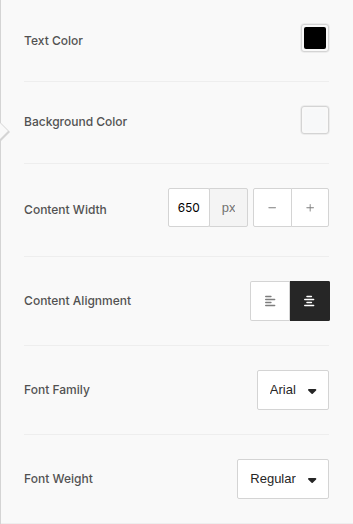
The Body panel also has a Font Weight dropdown (Regular, Bold, etc.) right below Font Family, which sets the default weight for all text in the email.
Apply fonts to a block of content
Section titled “Apply fonts to a block of content”This option allows you to apply a font to an individual block of content in your email, e.g. text, heading, or button. To do this:
- Go to the Content section of your email
- Click a content block that contains text
- Highlight the text you wish to change the font of
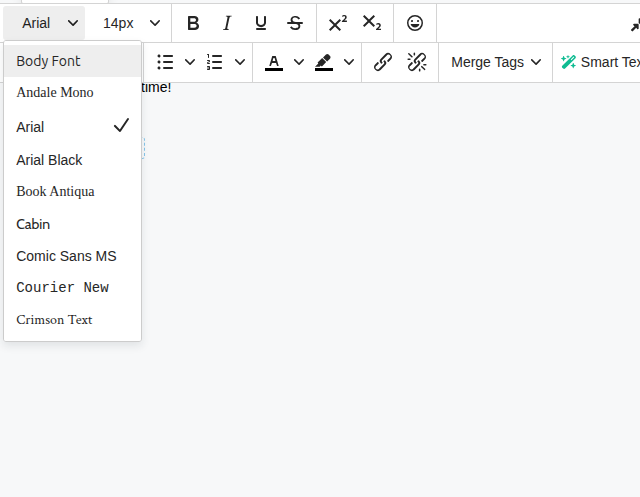
- Click the font family dropdown in the text formatting menu
- Select a font from the list — the top entry, Body Font, resets the selection back to whatever is set in the global Font Family setting