
Scheduling a Project to Open or Close Automatically
Scheduling lets a project open and close itself so you don’t have to be at your desk. You can combine three automatic triggers:
- Open automatically — the form starts accepting responses at a date and time you pick
- Close automatically — the form stops accepting responses at a deadline
- Close after a number of responses — the form closes once it has collected a maximum number of responses
All times are picked in your local timezone.
Setting a Schedule
Section titled “Setting a Schedule”- Click Forms in the main navigation to open your Dashboard
- Click the project you’d like to schedule — this opens its details panel
- Select Schedule
- Set an open time, a close time, and/or a maximum number of responses
- Check the summary at the bottom of the dialog — it spells out exactly what will happen
- Click Save schedule
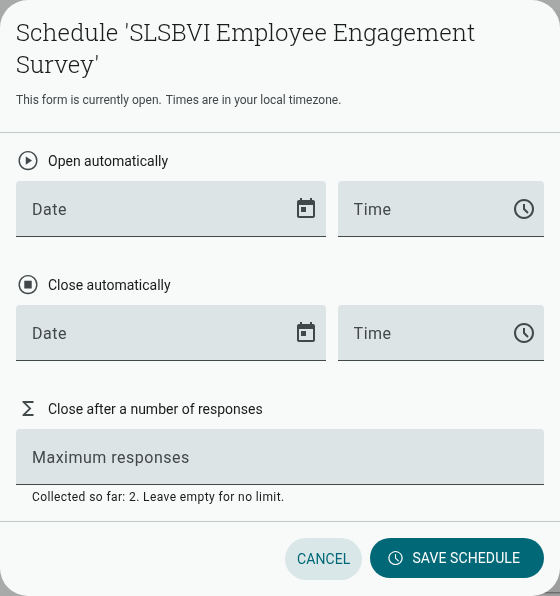
You can also open the same dialog from the three-dot menu on a form card, or from the form actions menu in the builder toolbar (Schedule open / close).
Your Dashboard shows a note on any scheduled project — for example “Opens 18 Aug, 9:00 AM” or “Closes at 100 responses” — so you can see upcoming changes at a glance.
Scheduling a Launch
Section titled “Scheduling a Launch”If you set an opening time on a form that is currently open, the form is closed right away and reopens automatically at the time you picked. The dialog makes this explicit: the summary reads “Closes now · reopens …” and the save button changes to Close now & save.
Until the opening time arrives, anyone visiting the form’s link sees “This form isn’t open yet” along with the opening time shown in their local timezone — useful for announced launches.
You can also schedule a pause window on an open form: set a close time and a later reopen time, and the form stays open, closes at the deadline, and reopens on its own.
How the Triggers Behave
Section titled “How the Triggers Behave”- Each trigger fires once and then clears itself. If you manually reopen a form after it auto-closed, it stays open — an old schedule never overrides you.
- The response limit counts identified (non-anonymous) responses, matching the response count shown on your Dashboard. Respondents who are already part-way through when the form closes can still finish; only new respondents are blocked.
- Scheduled changes take effect within about a minute of the set time.
- To remove a trigger, open the Schedule dialog, clear the field, and save.