
Actions
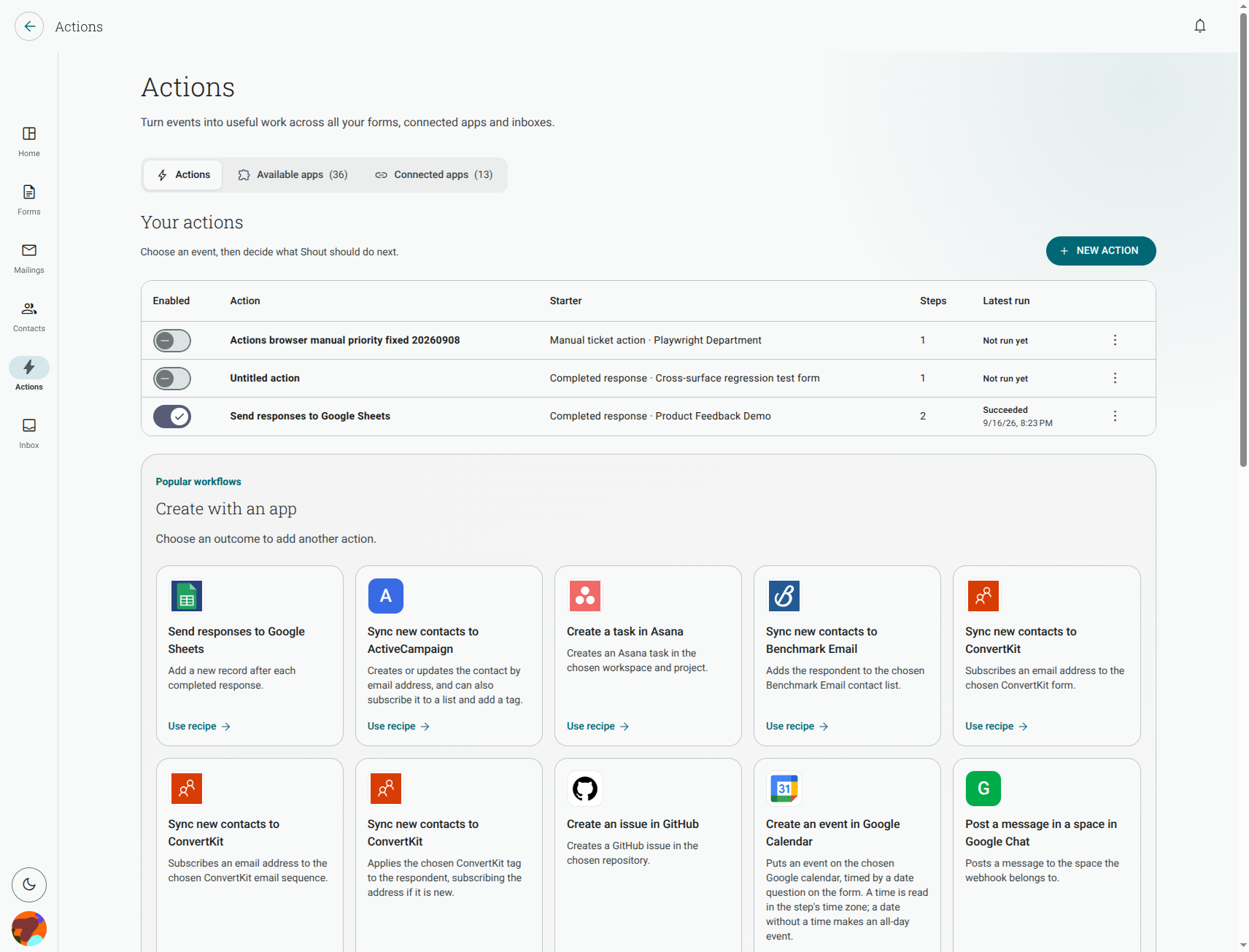
An Action is an automation you build in Shout. Something happens — a form is completed, a contact is added, a ticket arrives in your inbox — and Shout does something in response, either in Shout itself or in an app you have connected.
Actions replace the need to route Shout through Zapier or Make.com for the common cases. You connect the app once, then build the Action from a menu of outcomes.
Start here
Section titled “Start here”- Create your first Action
- Choose a starter and add conditions
- Connect an app to Shout
- Choose an Action step
- Test an Action before turning it on
- Automate your inbox with rules
What an Action is made of
Section titled “What an Action is made of”Every Action has two parts:
A starter — what sets it off. That is a completed form response, a new contact, or a ticket event in your inbox.
One or more steps — what happens next, in order. A step is named after its outcome:
| Step | What it does |
|---|---|
| Add a row | Adds a row to a spreadsheet, list or database table |
| Add a contact | Adds a contact to a mailing list or customer database |
| Create a lead | Creates a lead in your sales app |
| Create a task | Creates a task on your project board |
| Create a ticket | Creates a ticket in your helpdesk |
| Create a note | Creates a page or note |
| Create a calendar event | Adds an event to a calendar |
| Register an attendee | Registers someone for a webinar |
| Create a customer | Creates a customer record |
| Send a message | Posts a message to a chat channel |
| Send an SMS | Sends a text message |
| Send an email | Sends an email from one of your team inboxes |
You pick the outcome first and the app second. That means a “Send a message” step can post to Slack today and Microsoft Teams tomorrow without you rebuilding the step — you just change which connected account it uses.
Where to find Actions
Section titled “Where to find Actions”- Actions in the main navigation shows every Action in your account, along with the apps you can connect and the accounts you have already connected.
- Inside a form, the Actions tab (between Build and Send) shows only that form’s Actions.
Connecting an app
Section titled “Connecting an app”Most steps need a connected app. You can connect one from the Available apps tab, from the Connect your apps card on your Home dashboard, or from inside the Action editor while you are building — you do not have to leave what you are doing and set it up first.
The connection method depends on the app. If an app’s connection dialog says that sign-in is powered by Microsoft Azure, follow that app-specific disclosure and the permissions shown on its consent screen. Other apps use a different, native Shout connection flow. Check the disclosure for the specific app rather than assuming that one sign-in or storage model applies to every integration.
When you connect an app you also choose Make available to — whether the connection can be used across all of your workspaces, only some of them, or only by you. Anyone with the right access can then build Actions on a shared connection; they do not each need to connect the app themselves.
Narrowing when an Action runs
Section titled “Narrowing when an Action runs”By default a form Action runs on every completed response. Add conditions and it runs only when the answers match — for example, only when someone picks “Yes” to a follow-up question, or only when a rating is 4 or above. You can require that all conditions match, or any of them.
Responses that do not match are recorded as Skipped. That is the Action working correctly, not a failure.
Actions run on completed responses only. A response someone starts and abandons never triggers one.
Testing before you go live
Section titled “Testing before you go live”Use Send test to run the Action once from the editor.
A test makes a real change in the connected app. It writes a real row, posts a real message, creates a real ticket. Test into a scratch channel or a sample sheet rather than a live one.
Before the first step runs, Shout checks what it safely can — that every connection is healthy, that the destination still exists, and that the fields you mapped are still there. If a step fails partway through, the result tells you which step it was and how many succeeded before it. Retrying runs the whole sequence again from the start, so anything the earlier steps created will be created a second time.
What Actions do not do
Section titled “What Actions do not do”- They do not run on partial or abandoned responses.
- They do not undo anything. Disconnecting an app stops future runs, but records already sent to that app stay there — remove them in that app.
- They do not import anything into Shout. To bring contacts in from an app, use Import contacts from an app instead.
- They do not re-trigger each other. A change an Action makes to a ticket will not set off another Action.
Which apps can I use?
Section titled “Which apps can I use?”The Available apps tab lists everything you can connect, with the apps most Shout customers use shown first — chat and project tools such as Slack, Microsoft Teams, Trello, Asana, Jira, Monday and GitHub; spreadsheets and databases such as Google Sheets, Excel Online and SharePoint; and customer database and mailing tools such as HubSpot, Salesforce, Mailchimp and Zendesk.
Some apps are listed but show No actions yet. Those are apps we can connect to but have not yet built any steps for. If the app you need is missing entirely, use Request an integration — it opens a support ticket so we know there is demand for it.