
Send an email from a team inbox
The Send an email step sends an email from a team inbox with a connected mailbox. The mailbox can be Gmail, Outlook or a custom SMTP connection. Replies go back to that inbox.
How do I send an email after a form response?
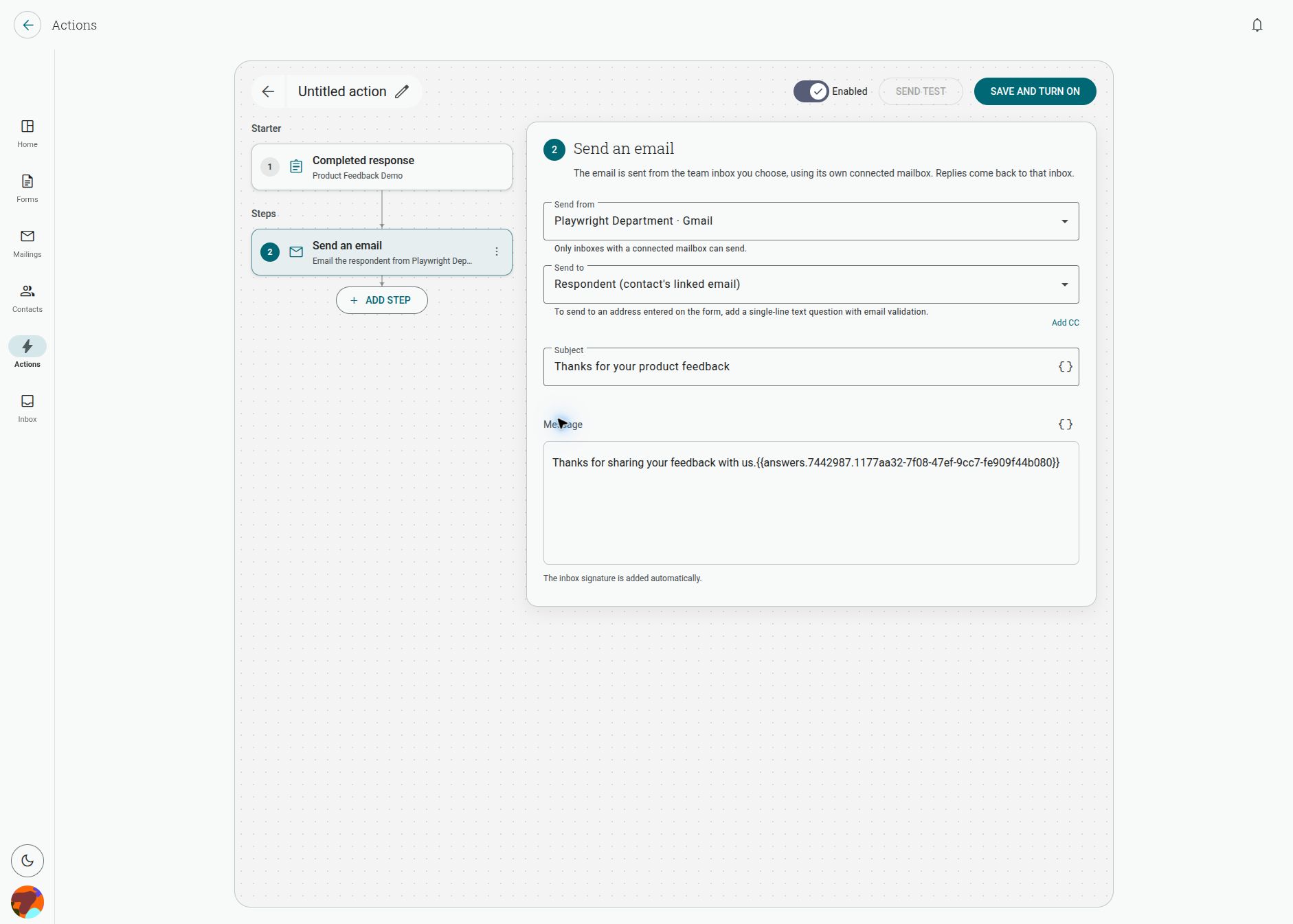
Section titled “How do I send an email after a form response?”- Open the form’s Actions tab and create an Action with Completed response as its starter.
- Click Add step and choose Send an email.
- Choose the team inbox in Send from. Only inboxes with a connected mailbox can send.
- Choose who receives the message. For a completed response, the default is the respondent’s linked contact email.
- Enter a subject and message. Use Insert variable when you want to include response data.
- Save the Action, test it with a safe address, and enable it when the message is ready.
Which mailboxes can send?
Section titled “Which mailboxes can send?”Select a connected team inbox that uses Gmail, Outlook or SMTP. The message is sent through that mailbox, and replies are returned to the same inbox.
Which recipient can I choose?
Section titled “Which recipient can I choose?”The recipient mode depends on the starter:
- Contact sends to the linked contact email. This is the default for a completed form response and is also available for a new-contact Action.
- Answer sends to an address collected by the form. The question must be a single-line text question with email validation.
- Ticket replies on the triggering ticket, from that ticket’s inbox, and keeps its subject.
- Users sends to named teammates. This option does not create a ticket or contact.
Can I email an address collected on the form?
Section titled “Can I email an address collected on the form?”The default recipient is the contact’s linked email. To send to an address entered on the form, add a single-line text question with email validation and use that response when configuring the recipient.
Can I add CC recipients?
Section titled “Can I add CC recipients?”Click Add CC in the step to copy teammates. CC recipients must be teammates in the workspace. Review every recipient before saving and testing the Action.
Can I include answers in the subject or message?
Section titled “Can I include answers in the subject or message?”Yes. Click Insert variable beside the subject or message field, then choose Response, Contact or Questions. The Questions menu contains the form’s individual answers. An empty optional answer remains empty in the resulting message, so write the surrounding text accordingly.
The message editor supports rich text, and the inbox signature is added automatically.