
Send Follow-up Reminders and Thank-yous
Follow-ups let you contact people from an original form invitation according to their response progress. Use reminders for invited people who have not completed the form, and thank-you messages for invited people who have completed it.
Before you begin
Section titled “Before you begin”A follow-up needs:
- A sent email invitation linked to a form.
- Send anonymously turned off on that invitation, so each contact has a tracked link.
- An open form for a reminder. Reopen a closed form before reminding people to respond.
An anonymous invitation cannot produce reminders or thank-yous because Shout does not know which contact opened or answered it. Follow-ups also remain tied to the people invited by the original campaign; they are not a way to select a new contact list.
Open the original invitation
Section titled “Open the original invitation”- Open Mailings and select Sent.
- Select the original invitation and open Report.
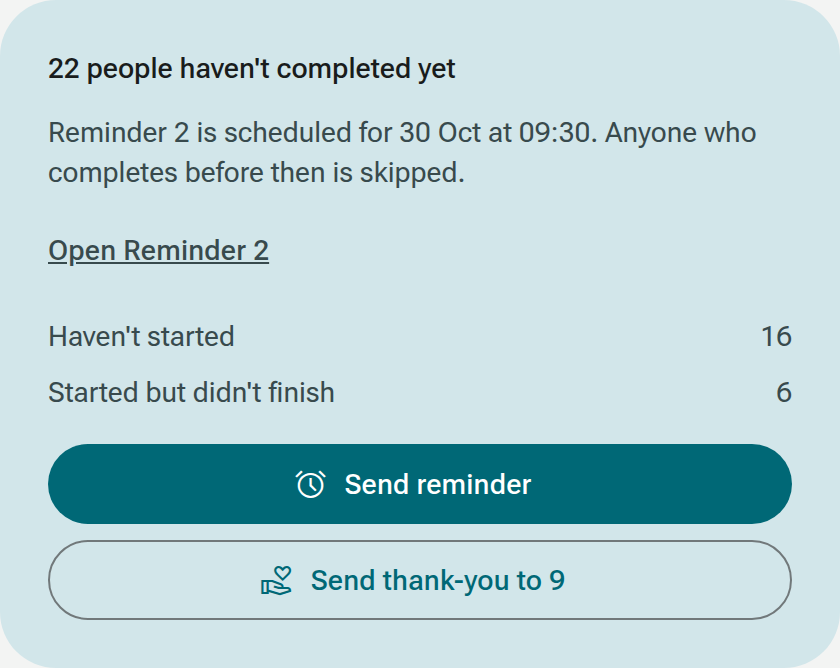
- On Overview, find the follow-up card. It separates Haven’t started from Started but didn’t finish.
If you are looking at a reminder or thank-you report, select Open invitation report. New follow-ups are always created from the original invitation, where the latest completion totals and complete message thread are available.
Send a reminder
Section titled “Send a reminder”- From the invitation’s Overview, select Send reminder.
- Complete Subject and sender.
- In Content, design the reminder. It keeps the original invitation’s form and should include its form link.
- Open Recipients. By default, the locked audience is people invited by the original campaign who have not started the form.
- To also remind people who started but did not finish, turn on Include people who started but didn’t finish. Their tracked link returns them to their unfinished response.
- Optionally add Only people who rules to narrow the reminder further.
- Preview the matching list and finish Schedule.
The number in Recipients is the number eligible right now. Shout checks the audience again when the reminder sends. Anyone who completes the form before then is left out automatically.
A reminder is unavailable when everybody invited has completed the form, or while the form is closed.
Send a thank-you
Section titled “Send a thank-you”- From the original invitation’s Overview, select Send thank-you to N.
- Add the subject, sender and email design.
- In Recipients, review the locked audience of invited people who completed the form.
- Optionally use Only people who to narrow the recipients further.
- Preview the list and finish Schedule.
Do not add the form invitation link to a thank-you message. These people have already completed it, and the Content section warns if the design links them back to the form.
The thank-you audience is also checked when the message sends. Invited contacts who complete after setup but before sending are included. The action is unavailable until at least one invited contact has completed the form.
Send more than one reminder
Section titled “Send more than one reminder”You can create more than one reminder for the same invitation. Shout numbers them Reminder 1, Reminder 2 and so on and keeps them with the invitation in one thread.
Use the earlier message activity when you want the next reminder to be more selective. For example, add an Only people who rule for people who did not open the previous reminder. The form-progress audience still applies first, so a completed respondent does not receive another reminder.
Avoid creating overlapping draft or scheduled reminders without reviewing the thread. The Overview highlights the pending reminder and lets you open it rather than losing track of its setup.
Manage a draft or scheduled follow-up
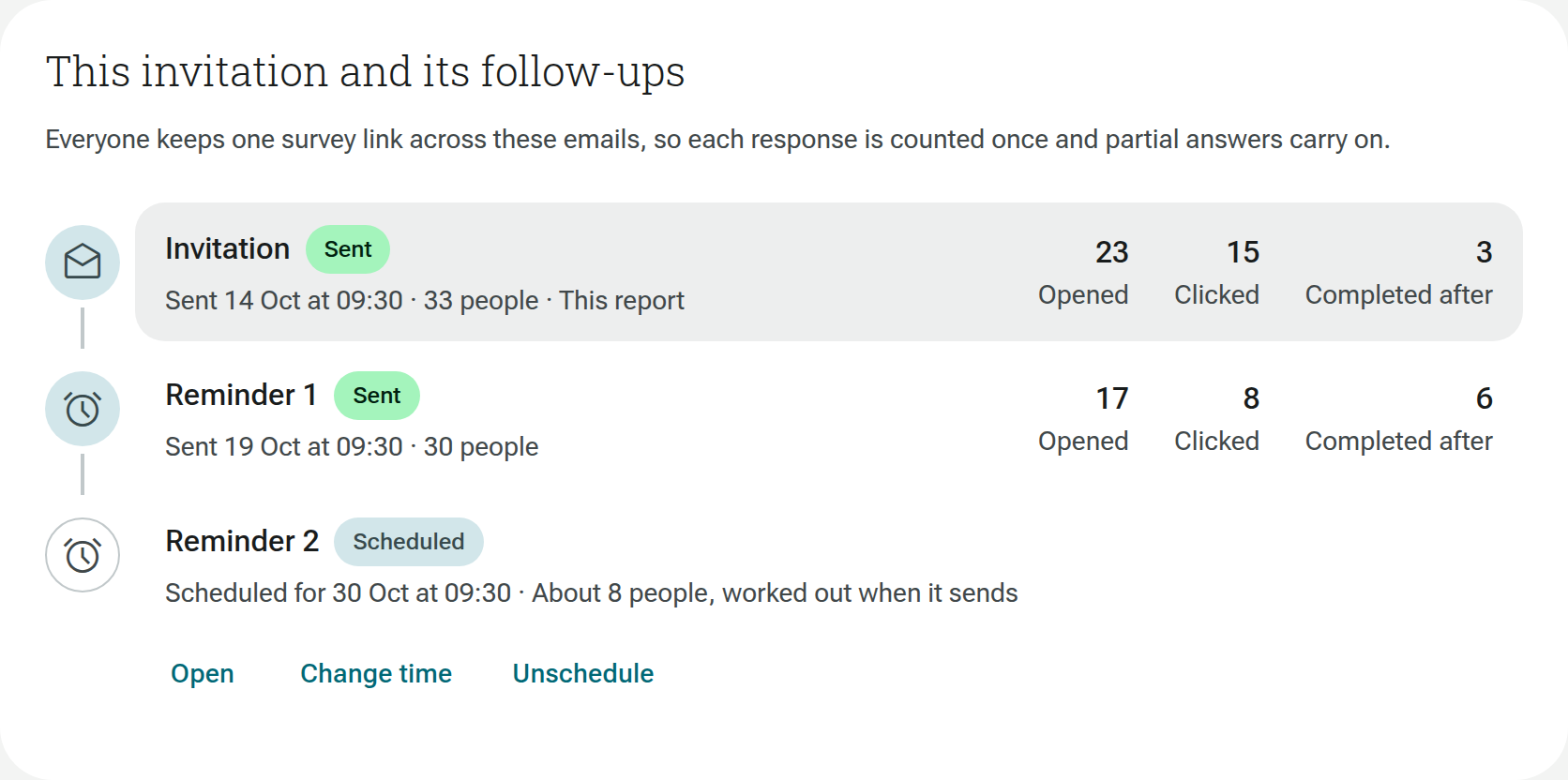
Section titled “Manage a draft or scheduled follow-up”The invitation’s This invitation and its follow-ups thread shows each invitation, numbered reminder and thank-you with its status.
- Select a draft to continue its four setup sections.
- For a scheduled follow-up, select Open, Change time or Unschedule.
- Select a sent item to open its own report and figures.
Change time returns the message to a draft and opens its Schedule section. Unschedule returns it to a draft and leaves you on the invitation report.
Read the follow-up results
Section titled “Read the follow-up results”For each sent message, the thread shows opens, clicks and, where relevant, how many people completed after it. Everyone keeps the same tracked form link across the invitation and reminders, so partial answers carry on and each person’s response is counted once.
The invitation’s funnel and latest-response totals cover the invitation journey. Select a particular reminder or thank-you in the thread when you need that email’s recipients, links or sent design. See Understand Campaign Reports for each report tab.