
Use answers and contact details in an Action
Variables let a step use data from the event that started the Action. Use them in message and email text, subjects, spreadsheet columns, and other mapped fields.
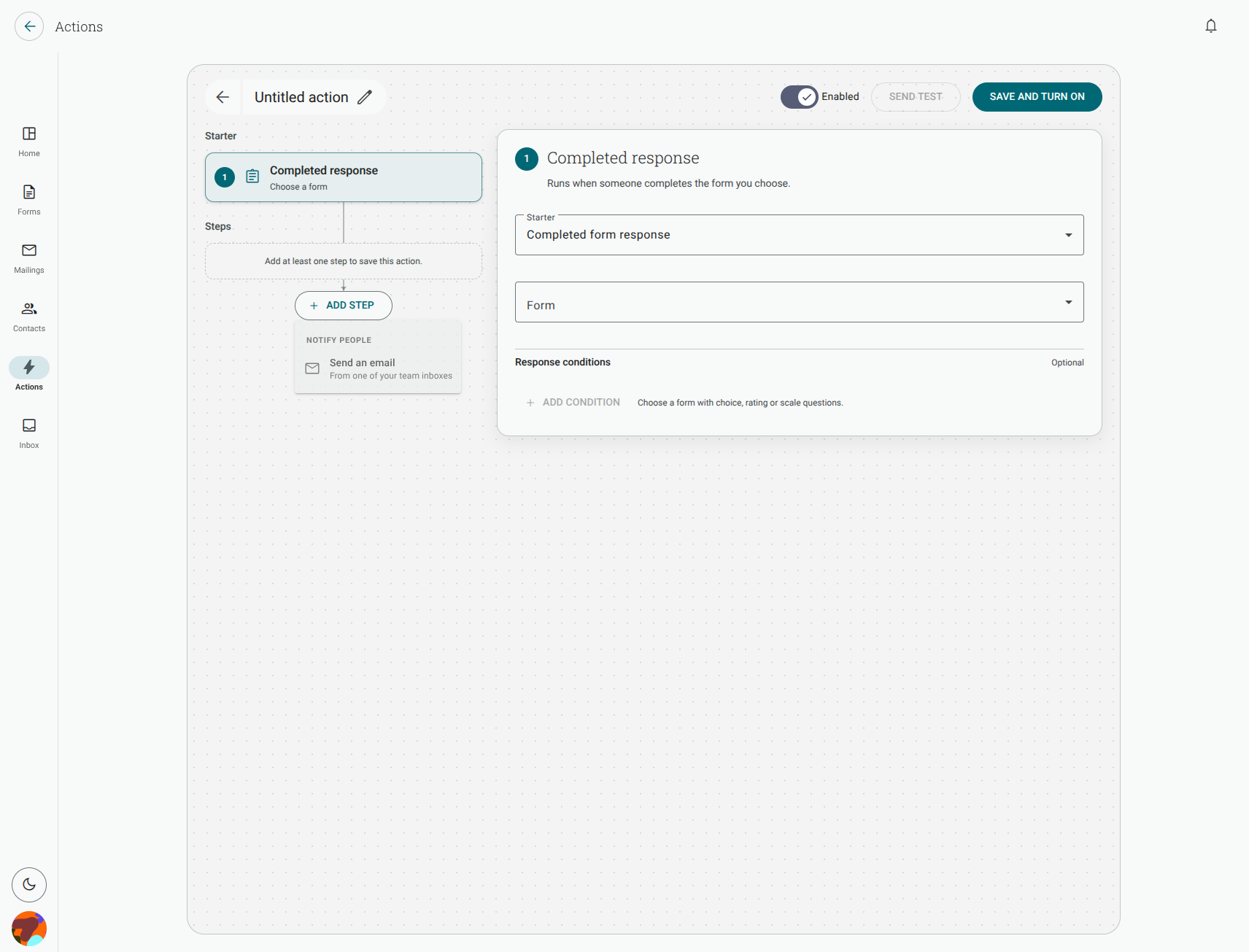
How do I put an answer into a message or email?
Section titled “How do I put an answer into a message or email?”- Open the Action and edit the step.
- Click in the message, subject or mapped field where the value should appear.
- Open the variable menu and choose the answer or contact field.
- Continue writing around the inserted variable, then save the Action.
For example, a message can include the respondent’s name, rating and comment without copying those values into the Action manually.
Which variables are available?
Section titled “Which variables are available?”The list depends on the starter and the form selected:
- A completed-response Action can use the form’s questions and contact details.
- A contact-created Action offers contact fields, but not answers from a form response.
- Ticket starters offer the ticket and contact values available for that ticket event.
Some question types expose parts separately. A date range can provide From and To; a matrix, rating or Likert question can provide its row values. Where available, the whole question can be inserted as all parts.
Can I use a variable in a spreadsheet column?
Section titled “Can I use a variable in a spreadsheet column?”Yes. In an Add a row step, select a variable in the mapping for the column. You can mix fixed text and variables where the field accepts text.
What appears if the respondent skipped the question?
Section titled “What appears if the respondent skipped the question?”The variable has no answer value, so the destination receives an empty value for that part. It does not create a value that the respondent did not provide. If the destination requires a value, enter a fixed fallback in the step or make the question required before relying on it.