
Bulk Actions for Forms and Email Campaigns
Use the checkboxes in Forms or Mailings to manage several items together.
Select items
Section titled “Select items”- Open Forms or Mailings from the main navigation.
- Choose the workspace and use the search or filters to find the items you need.
- Use the checkbox at the left of each row to select it. On a desktop, hover over a row to reveal its checkbox.
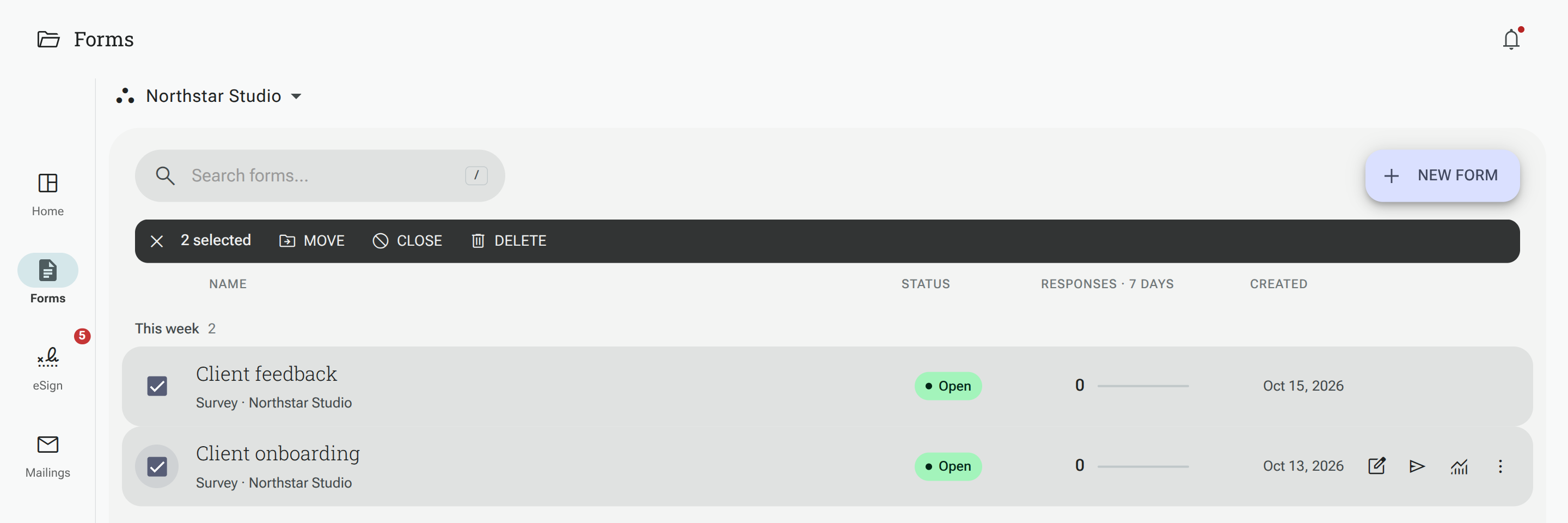
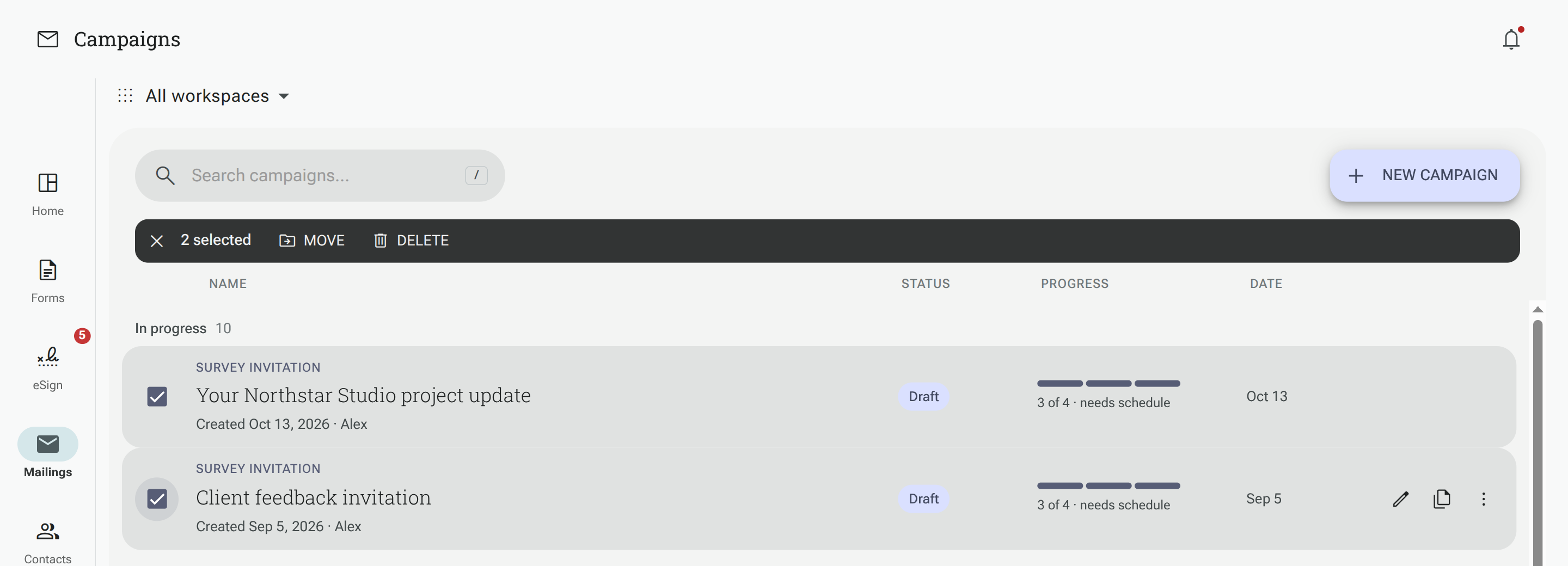
- Check the selected count in the action bar, then choose an action.
Clicking a row opens its details; ticking its checkbox adds it to the selection. Use Clear selection (the × in the action bar) to uncheck everything. Only checked items are included, so scroll through the list and check any additional items you need before continuing.
Available actions
Section titled “Available actions”| Area | Bulk actions | What happens |
|---|---|---|
| Forms | Move, Close, Delete | Move selected forms to a Workspace, stop them collecting responses, or move them to Deleted. |
| Mailings | Move, Delete | Move selected campaigns to a Workspace or delete them. |
Click Move, choose the destination in Move to Workspace, then click Move in the dialog. The destination must be a Workspace you can access. You can also create a Workspace from this dialog.
Moving keeps the existing form or campaign; it does not create a copy. A form’s collected responses and reports stay with that form. Moving a form also moves its linked email campaigns, including reminders, into the same Workspace. This changes who can access those campaigns and their history. Moving a campaign separately does not move its linked form.
Choose a named shared Workspace when handing work over to colleagues. The no-workspace option removes the Workspace assignment; it does not assign the form to another person. See Moving a Project to a Workspace.
Close forms
Section titled “Close forms”Click Close and review the confirmation before choosing Stop collecting responses. Closed forms become inaccessible to respondents and stop collecting responses; their existing results remain available.
Forms that are already closed, shared with you through an older individual sharing invitation, or being checked for abuse are skipped. The confirmation lists skipped forms and their reasons. Forms shared through a Workspace are treated according to your Workspace access.
Delete forms
Section titled “Delete forms”Click Delete and review the confirmation. Eligible forms move to Deleted, where you can restore them for about a month.
Forms shared with you through an older individual sharing invitation, and forms being checked for abuse, are skipped. The confirmation lists the skipped forms. Bulk actions are unavailable in the Deleted view; restore or permanently delete those forms individually.
Delete campaigns
Section titled “Delete campaigns”Click Delete and confirm the campaigns you want to remove. If a campaign is scheduled, being tested or sending, Shout requests cancellation before deletion. Deletion does not recall emails that have already been sent. Campaigns do not use the Forms Deleted view or its restore period.
Check the outcome
Section titled “Check the outcome”Forms and campaign bulk actions process each checked item separately. One failure does not stop the others. Read the notification: it reports how many succeeded and how many could not be changed. Check the list and retry any remaining items after resolving their access or other issue.
Responses and reports
Section titled “Responses and reports”To delete several responses, use the checkboxes in a form’s Results → Responses table. This is a separate action: Deleting Results explains the permanent deletion and optional connected-contact deletion.
Custom reports are managed individually from their report menus. Selecting forms in the Forms list does not select individual reports or responses for deletion.