
Reconnect or remove a connected app
Open Actions → Connected apps to check a connection’s status. A connection that needs attention cannot reliably be used by an Action until you fix or reconnect it.
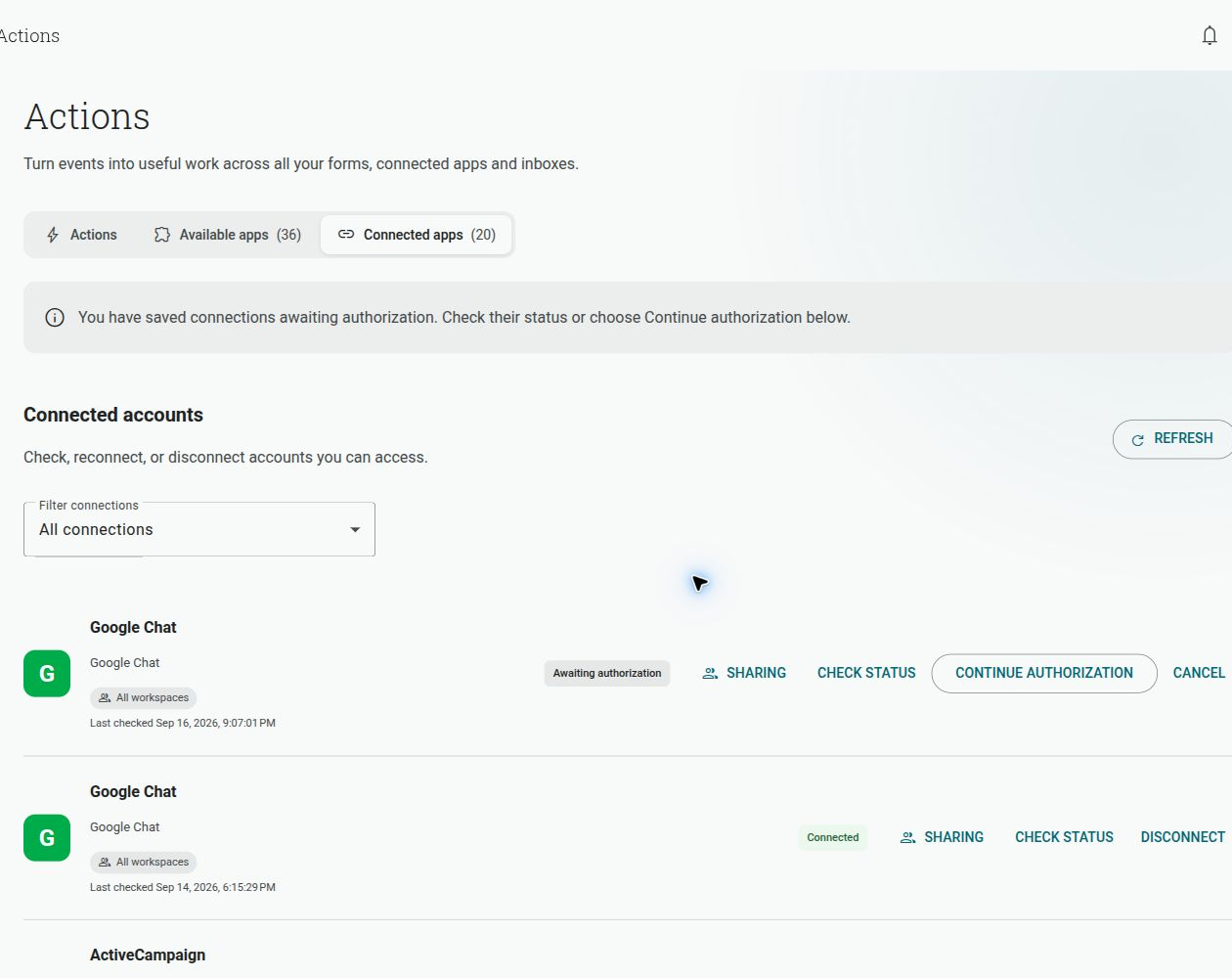
My connection says Needs attention. What do I do?
Section titled “My connection says Needs attention. What do I do?”- Open Connected apps and find the connection.
- Open its connection settings and choose Reconnect when it is available.
- Complete sign-in and consent in the new window.
- Return to Shout and run Check status.
- Review the Action’s destination before testing it again.
The common causes are an expired sign-in, access revoked at the app’s end, or a permission that the app no longer grants.
What if I started connecting an app but did not finish?
Section titled “What if I started connecting an app but did not finish?”An unfinished setup does not create a usable connected account. If the setup window was closed or the setup expired, start again from Available apps → the app → Connect account.
If Shout says That setup expired and was removed, the temporary setup was cleaned up. Nothing needs to be restored; connect the app again.
What happens to my Actions if I disconnect an app?
Section titled “What happens to my Actions if I disconnect an app?”Actions that use that connection stop running until you select a working connection or reconnect the app. Records, messages or other changes already sent to the app are not removed. Delete those records in the app itself if necessary.
What if I changed my password or revoked access at the app’s end?
Section titled “What if I changed my password or revoked access at the app’s end?”The saved connection may move to Needs attention or require authorisation. Reconnect it from Connected apps, then check the destinations used by your Actions. Changing a password in the app does not remove records Shout sent there previously.
The connection says it is busy. Why?
Section titled “The connection says it is busy. Why?”Another sign-in is still finishing. Wait briefly for the connection status to settle, then refresh the Connected apps page. If it remains busy, close the unfinished sign-in window and start the connection again.