
Choose a document workflow
You can use the same PDF with either workflow. The choice changes how people provide the details that belong on it.
Form plus document
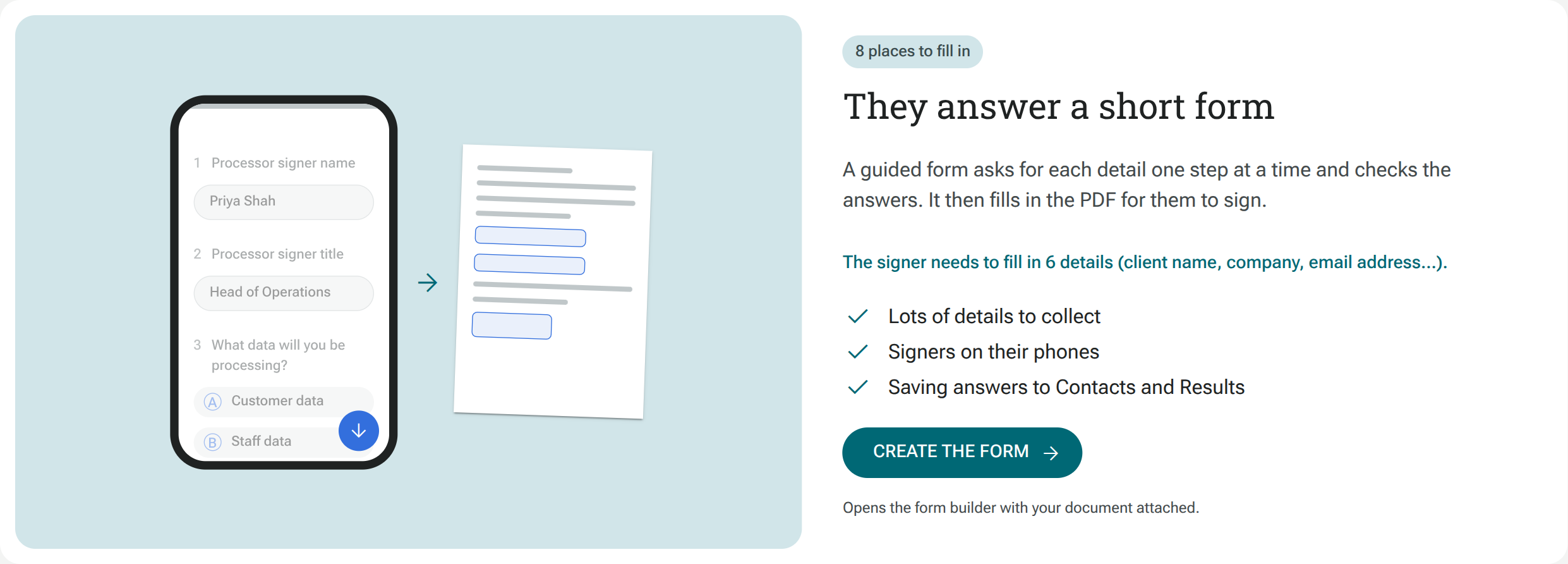
Section titled “Form plus document”Choose They answer a short form when you want people to answer clear questions before signing. The form checks their answers and fills the matching boxes on the PDF. They then review the document and sign.
This works well when you have several details to collect, people will answer on their phones, or you want to use form sections, conditional questions, Contacts and Results. You can add ordinary form questions alongside those that fill the document.
Select Create the form to open the builder with your document attached. See Create a form with a document.
PDF-only signing
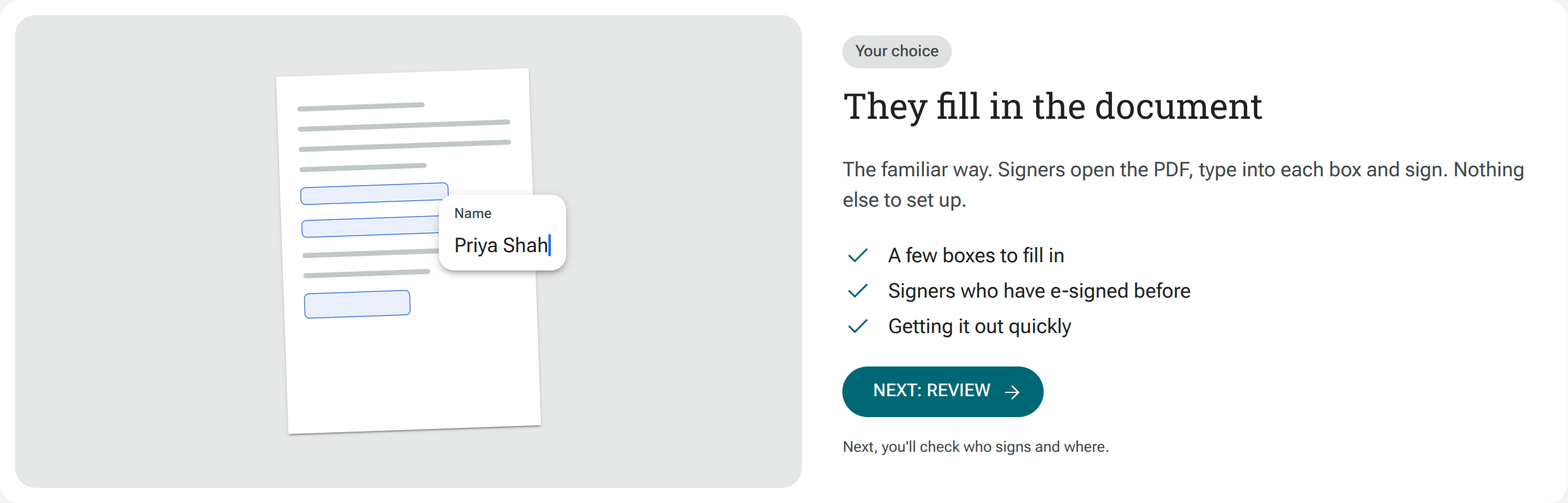
Section titled “PDF-only signing”Choose They fill in the document for the familiar PDF-only workflow: signers open the PDF, type into the boxes you have prepared, and sign. This is useful for a ready-made document with a few fields.
Select Next: Review to check the fields and signing order. See Send a PDF for signing.
Change the suggested choice
Section titled “Change the suggested choice”After reading your PDF, Shout may suggest a workflow. The alternative appears underneath. Select Use this instead to switch before continuing.
Importing questions is a separate choice
Section titled “Importing questions is a separate choice”When you add a PDF in the form builder, Get it signed keeps the PDF as a document to sign. Turn into questions creates form questions from its contents. Use Get it signed when you need a signed copy of the original document.