
Choose Campaign Recipients
The Recipients section decides who is eligible to receive a campaign. You can combine contact groups or segments, remove exceptions and then narrow the result with activity or survey rules.
Before you begin, add your contacts and make sure they have permission to receive marketing email. See Import contacts from a file, How to Group Contacts and Segmenting Contacts.
Build the starting audience
Section titled “Build the starting audience”Open the campaign and select Recipients.
- Under Send to, select Add recipients.
- Choose one or more groups or segments, or choose All contacts.
- To remove a group or segment from the result, select Add an exception under Except.
- Check the number of people shown at the bottom of the section.
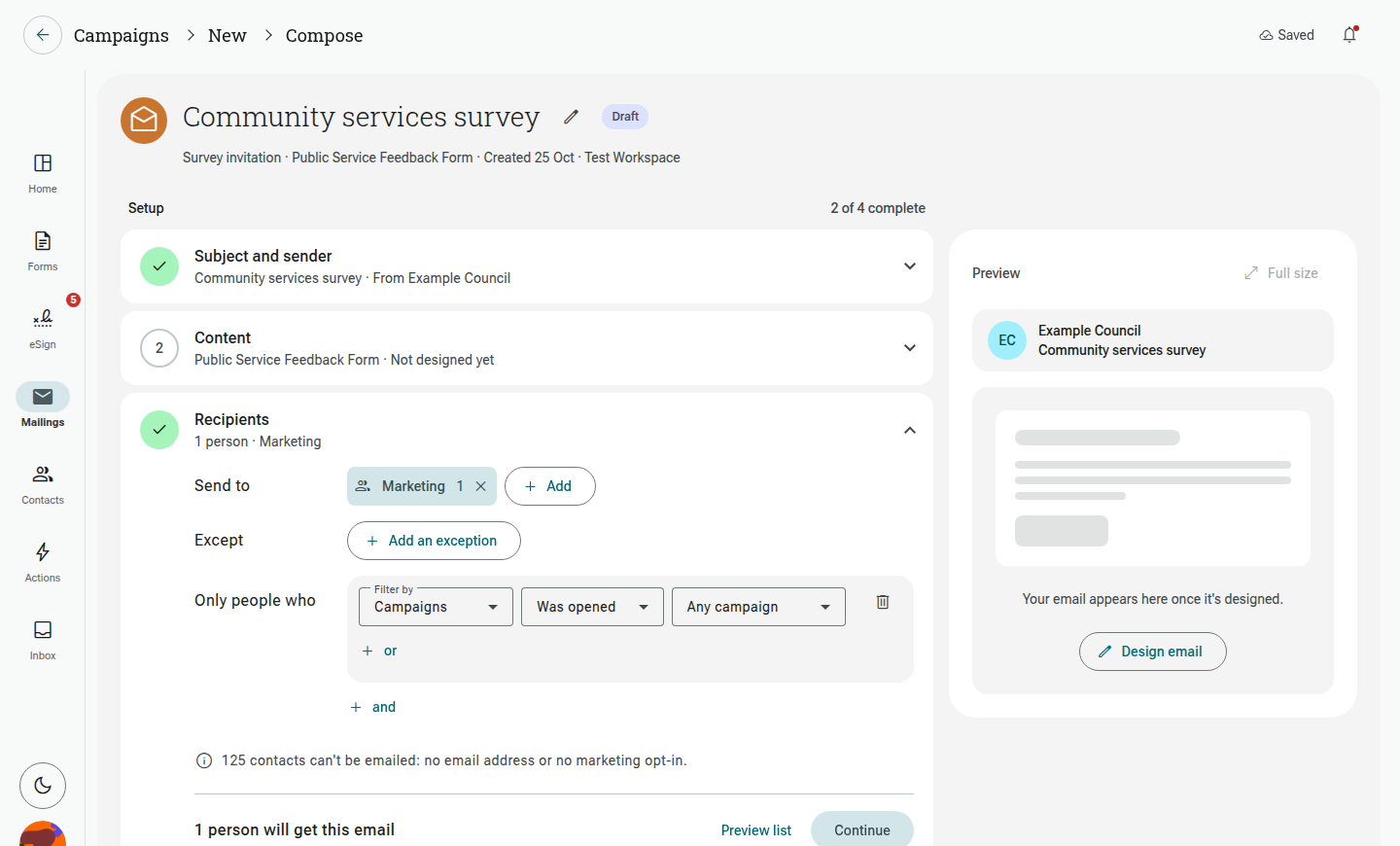
Contacts who belong to more than one selected group receive one email, not one per group. Choosing All contacts replaces selected groups and segments; your Except and Only people who choices still narrow that audience.
Exclude contacts
Section titled “Exclude contacts”Use Except when a whole group or segment should not receive this campaign. For example, send to a customer group except a segment containing people who attended the last event.
An exception always removes a matching contact, even if that person is also in a group or segment under Send to.
Add audience rules
Section titled “Add audience rules”Use Only people who for rules that must be calculated from contact information or activity.
- Select Add a filter.
- Choose the information to check, an operator and a value where required.
- Add more rules if needed.
- Use the and button at the bottom to add another requirement. Use the or button beside a rule to add an alternative to that rule.
The builder keeps one clear precedence rule: alternatives inside an Or block are checked first, and the resulting block is joined to the other rules with And. In other words, a filter can read (A or B) and C; it never treats an ungrouped sequence as A or (B and C).
Available rules can include contact fields, group membership, earlier email activity and form progress. For example, you can target people who did not open an earlier campaign or people who have not completed a selected form.
Form progress choices include Completed, Started but not finished, Haven’t completed and Haven’t started. Campaign choices can include whether a contact was sent, opened or clicked an earlier email.
Finish every rule before continuing. An unfinished rule is not applied and prevents you from previewing or completing the Recipients section.
Example audiences
Section titled “Example audiences”- Everyone in Group A or Group B, except Segment C: add Group A and Group B under Send to, then add Segment C under Except. Shout combines the two included groups, removes every Segment C member and deduplicates people in both groups.
- Group A members who have not completed a selected form: add Group A under Send to. Under Only people who, select the form and Haven’t completed. The group membership and form state must both match.
- Two roles in one region: add the first role rule, select or beside it and add the second role. Then select and at the bottom and add the region rule. The filter reads
(Role A or Role B) and Region C. - Reminder for people who missed the previous message: start the reminder from the original invitation. Its locked audience already limits it to the appropriate unfinished recipients. Under Only people who, add a rule for people who did not open the previous reminder. The final audience must match both the locked response state and the non-open rule.
The total and Preview list update to show the result of the complete recipe, so you can confirm the outcome before continuing.
Preview the matching people
Section titled “Preview the matching people”Select Preview list to see the contacts included by the current Send to, Except and Only people who choices. This is the same audience used for the number beside the section.
Check for unexpected names before you continue. If the result is empty, remove or adjust an exception or filter rather than scheduling the campaign with no eligible recipients.
The final audience is checked again when the campaign sends. A contact who has unsubscribed, lost marketing permission or been deleted since setup will not be emailed.
Recipients for reminders and thank-yous
Section titled “Recipients for reminders and thank-yous”A follow-up starts with a locked audience from its original tracked invitation:
- A reminder starts with invited contacts who have not started the form. Turn on Include people who started but didn’t finish to include both unfinished groups.
- A thank-you starts with invited contacts who completed the form.
You cannot replace that starting audience with another group. You can use Only people who to narrow it further, such as reminding only people who did not open the original invitation.
The count says how many people match right now because Shout calculates it again when the follow-up sends. People who complete before a reminder sends are left out; people who complete before a thank-you sends are included.
See Send Follow-up Reminders and Thank-yous for the complete follow-up workflow.