
Map columns when importing contacts
The Fields step shows one row for each column Shout read from your source. Choose the Shout contact field that each column should fill. Columns you leave unmapped are ignored.
Which field is required?
Section titled “Which field is required?”Map one source column to Email address. Shout uses the email address to create a new contact or match an existing contact. The import cannot continue until an email column is mapped.
How does Shout pre-fill my mapping?
Section titled “How does Shout pre-fill my mapping?”Shout first uses the column names and known field-name hints. It can also suggest mappings from the column names using a model. No contact data is sent to the model; only the column names are used.
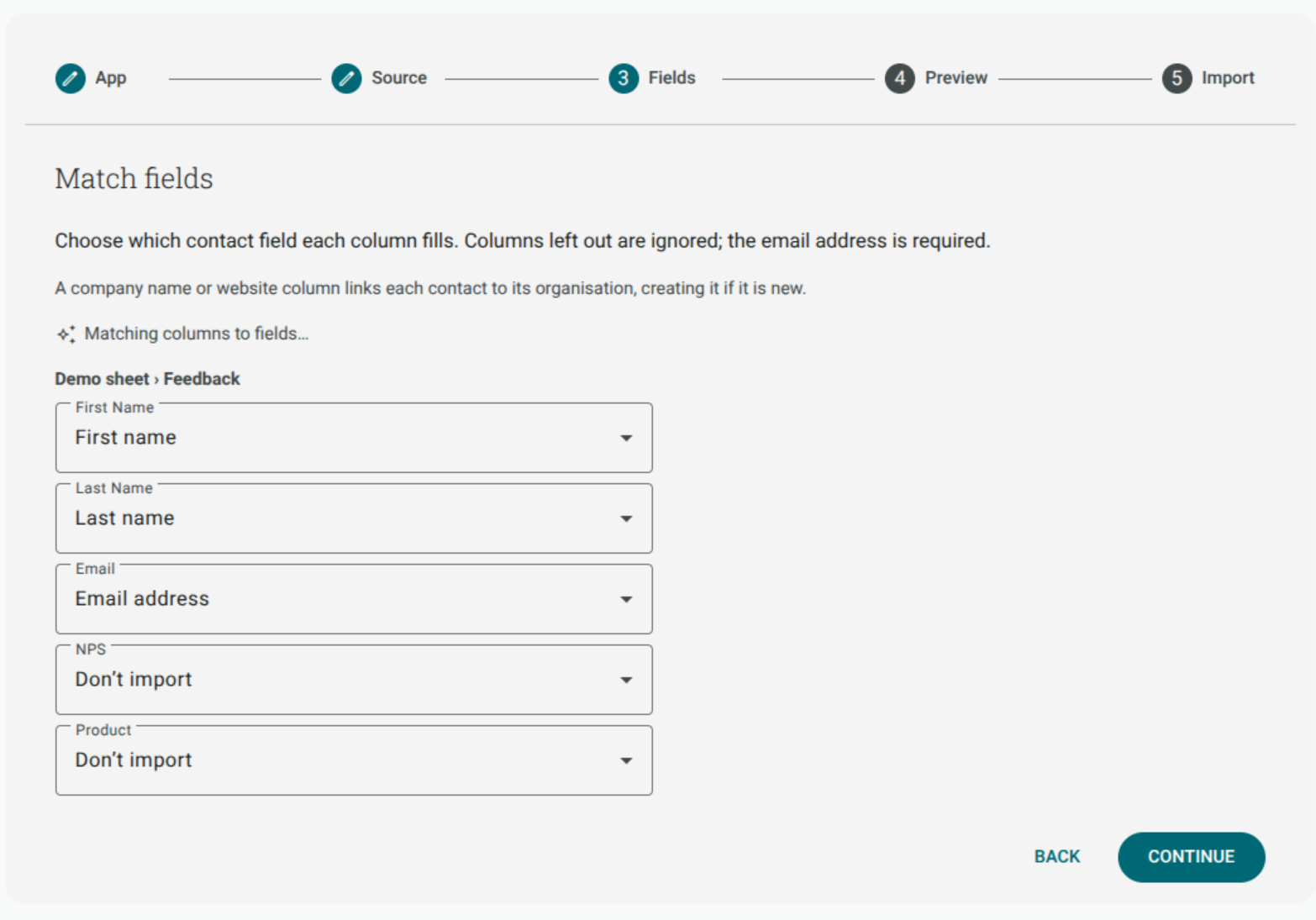
Review every suggestion before continuing. A suggestion is not a guarantee that the values in the column fit the selected field.
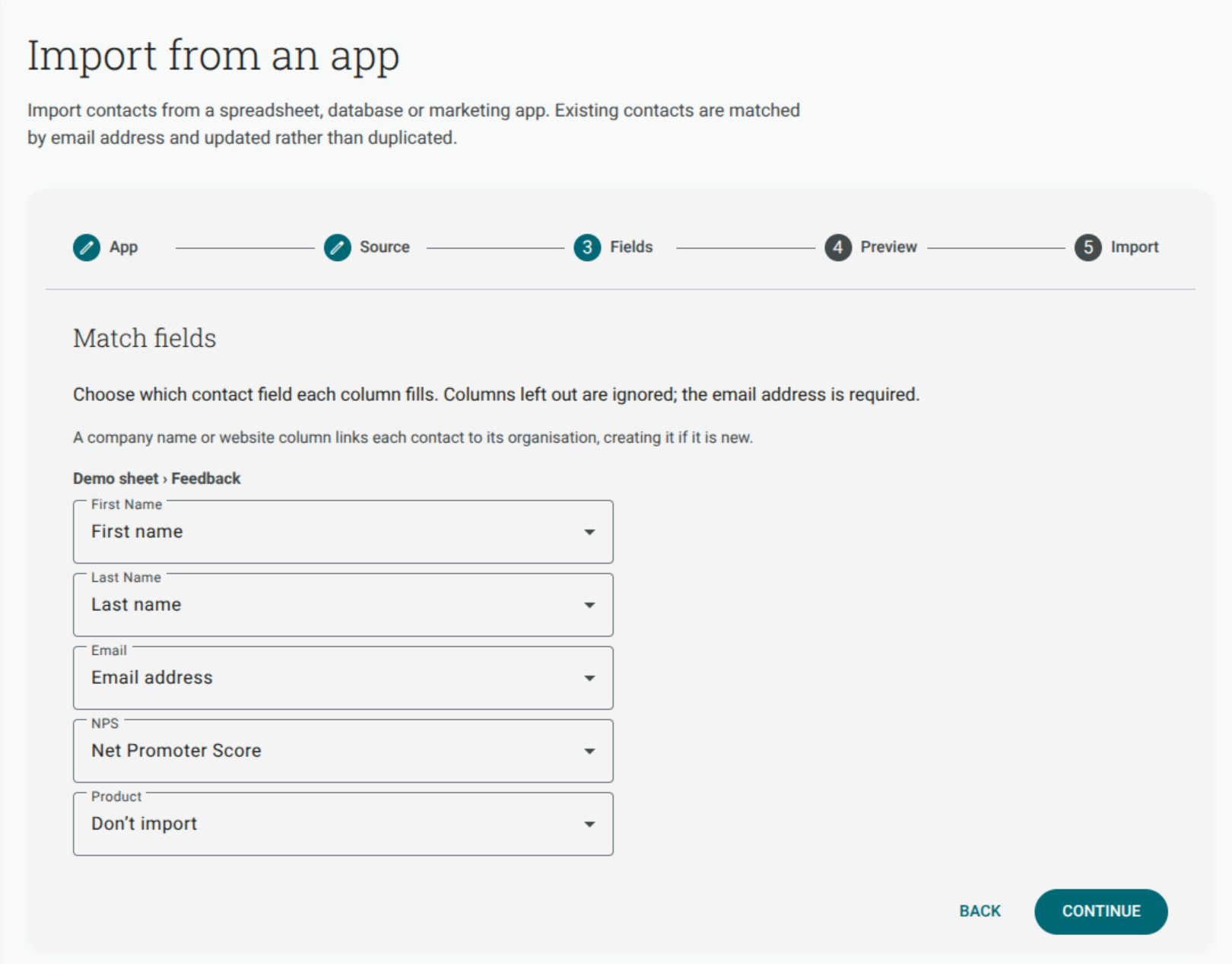
The first image shows the automatic matching state while suggestions are loading. The second shows the resulting mapping: First Name → First name, Last Name → Last name, Email → Email address, NPS → Net Promoter Score, and Product → Don’t import. Review the selected field above each column before you continue, even when Shout’s suggestion looks right.
How do I import one “Name” column?
Section titled “How do I import one “Name” column?”Map the column to Full name. Shout splits a full name into first and last name, including names written as Last, First.
Do not map Full name together with First name or Last name. A contact field can be filled from one column only, and the importer will show this as a conflict. Choose either the full-name column or the separate first-and-last columns.
Can I import an organisation?
Section titled “Can I import an organisation?”Yes. Map source columns to Organisation name and, when available, Organisation website. Shout uses those values to link the contact to an organisation and can create the organisation when it is new.
Can I import custom fields?
Section titled “Can I import custom fields?”Yes, you can map a source column to an existing Shout custom field. The importer does not create a new custom field for you. Create the field first, then return to the import and select it in the mapping list.
Unmapped source columns are ignored.
What does a mapping warning mean?
Section titled “What does a mapping warning mean?”A warning means the previewed values do not mostly look like the field you selected—for example, text mapped to a phone field. It is advice, not a block. Check the mapping and correct it if the warning is right; continue if the values are intentional.
The warning appears above Preview after Shout compares the mapped field with the values it read. Correct the mapping when the values do not belong in that contact field.
Why are some columns missing?
Section titled “Why are some columns missing?”Shout can show only columns the selected source exposes and the connected account can read. This is why a spreadsheet can show many columns while a provider contact reader shows a smaller, provider-defined set. Check these common causes:
- The first row of a spreadsheet does not contain headings.
- The connected account cannot access the file, table, list or fields.
- The source app exposes only a defined set of contact fields. For example, HubSpot custom properties are not available in the importer; fields from ActiveCampaign, Mailchimp, ConvertKit, Salesforce or Zendesk appear only when the selected source returns them.
- A SharePoint Choice, person or multi-select column is not read by this importer.
- The source changed after you saved the import.
Choose Reload on the Source step, or edit the saved import and load its columns again.
Why will the importer not continue?
Section titled “Why will the importer not continue?”Check the inline message above the mapping list:
- Map a column to the email address to continue. Map one column to Email address.
- Map either a full name column or first and last name columns, not both. Remove one name mapping.
- Another column already fills this field. Leave one column mapped to that field and unmap the duplicate.
Preview the import after fixing the mapping. Invalid rows are then identified before the final run.