
Sign and download a document
If someone has asked you to sign, open the invitation or the form link they provided. For requests assigned to you as a team member, open eSign → To sign in Shout.
Fill in and review
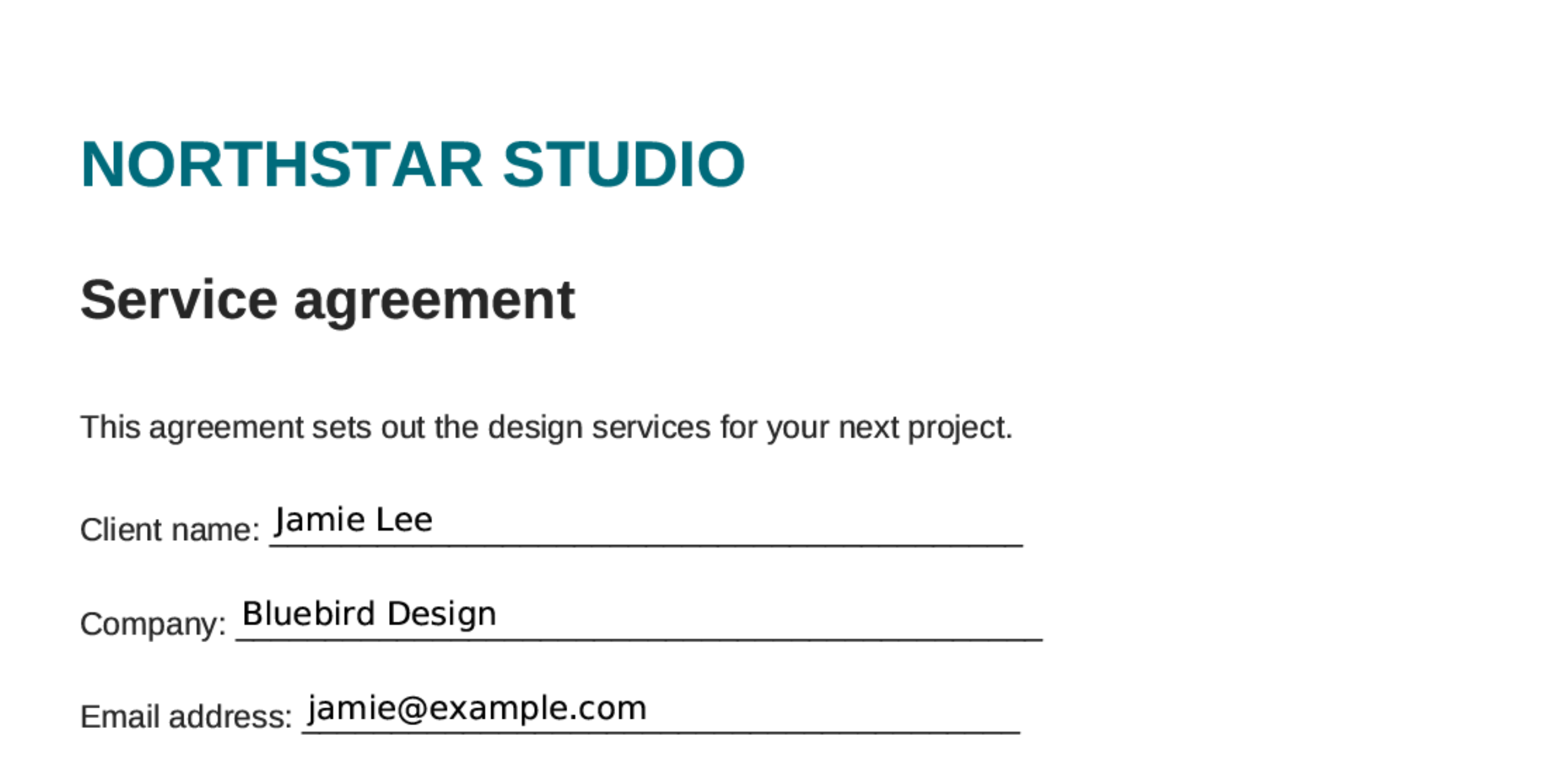
Section titled “Fill in and review”For a PDF-only request, fill in the boxes on the document. For a form with a document, answer the form questions first; your mapped answers are placed on the PDF.
Review every page before signing. Where available, View as text offers another way to read the document. Check the original pages if anything is unclear, particularly with scanned documents.
Complete any email verification requested by the signing flow. If you cannot open or read the document, or the details are wrong, contact the sender before proceeding.
Agree and sign
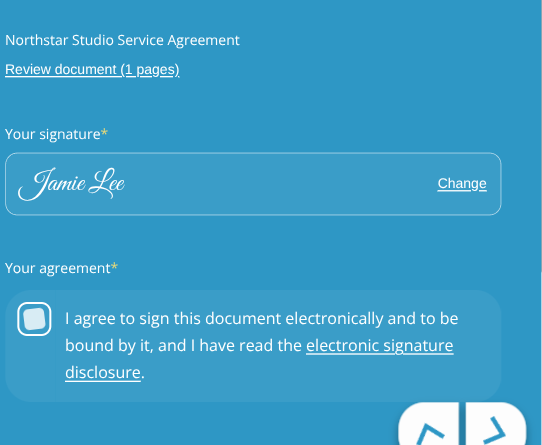
Section titled “Agree and sign”Read the electronic signature disclosure and any instructions from the sender. Prepare your signature by drawing it or adopting one from your typed name, then select the electronic-signature consent checkbox if you agree.
Preparing the signature and ticking consent do not sign the document on their own. Your signature is recorded when you submit it with the signing or form submission button.
If you do not wish to sign, stop the process or use Decline to sign where it is offered. Contact the sender about alternatives.
Keep your completed copy
Section titled “Keep your completed copy”If other people also need to sign, the request remains in progress until they have done so. The final document and audit certificate are produced once everyone has signed.
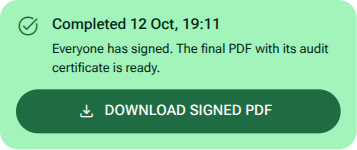
When a completed-copy link is made available, download and keep your copy. Contact the sender if you need help accessing it. Senders and team members with access can also download it from Documents.