
Manage signing requests
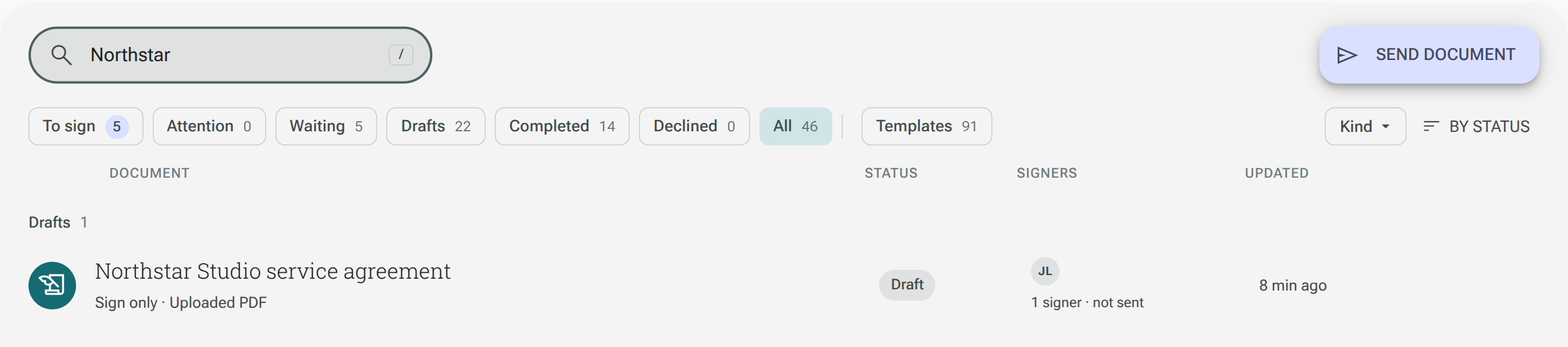
Open eSign in the main navigation to see signing requests from both PDF-only signing and forms with documents.
Find a request
Section titled “Find a request”Use the folder chips to focus the list:
| Folder | What to look for |
|---|---|
| To sign | Requests waiting for you to sign |
| Attention | Requests with a problem to resolve |
| Waiting | Requests still awaiting other signers |
| Drafts | Requests you have not sent |
| Completed | Requests where signing is complete |
| Declined | Requests that have closed |
| All | The complete request list |
| Templates | Documents saved for reuse |
Use search and the document type filter when you need to narrow the list. Select a document to open its details.
Check signing progress
Section titled “Check signing progress”The details show the request’s status, expiry, signers and history. The signer timeline shows who has signed and who is next. For a signing form, Signing form opens the associated form.
Available actions depend on the request’s state and your access. These can include continuing a draft, reminding a signer, changing an email address or expiry, retrying a failed operation, and cancelling a request. Check the status message before deciding which action to take.
Download the completed document
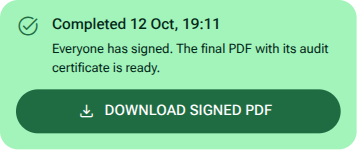
Section titled “Download the completed document”Once everyone has signed, the final PDF is generated with its audit certificate. Open a completed request and select Signed PDF to download it. Download audit certificate is also available from the request menu.
Keep the completed files you need before deleting a request or its associated form. Link expiry does not itself delete completed signing records. See Data retention.