
Create a form with a document
A signing form collects answers through ordinary form questions and puts the mapped answers on your PDF. People can complete the questions before reviewing and signing the document.
Start from Documents
Section titled “Start from Documents”- Open eSign and upload the PDF you need signed.
- Choose They answer a short form. Use Use this instead if the other workflow is suggested.
- Select Create the form. The builder opens with the PDF attached.
- Review the suggested questions, document fields and signing order.
You can also add a PDF while building a form. When asked what to do with it, choose Get it signed.
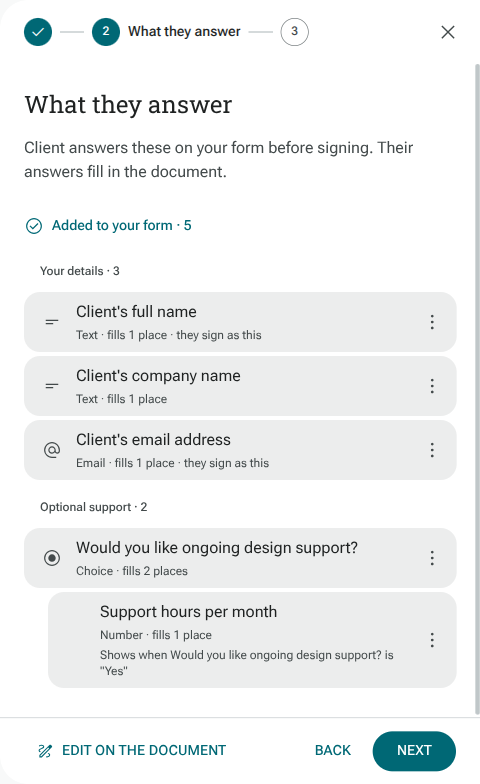
Check the questions and mappings
Section titled “Check the questions and mappings”The setup can suggest questions from places to fill in on the document. Check the wording and question type before accepting them. Questions that supply document answers should come before the document in your form.
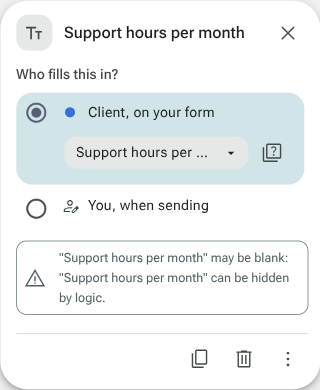
Use Edit on the document to check the boxes on the PDF. Make sure each answer goes to the right place and each signature field belongs to the correct signer. Review every page, including fields AI did not detect.
You can include questions that do not go onto the PDF, and organise the form into sections. For follow-up questions and sections that apply only to some people, use conditional display.
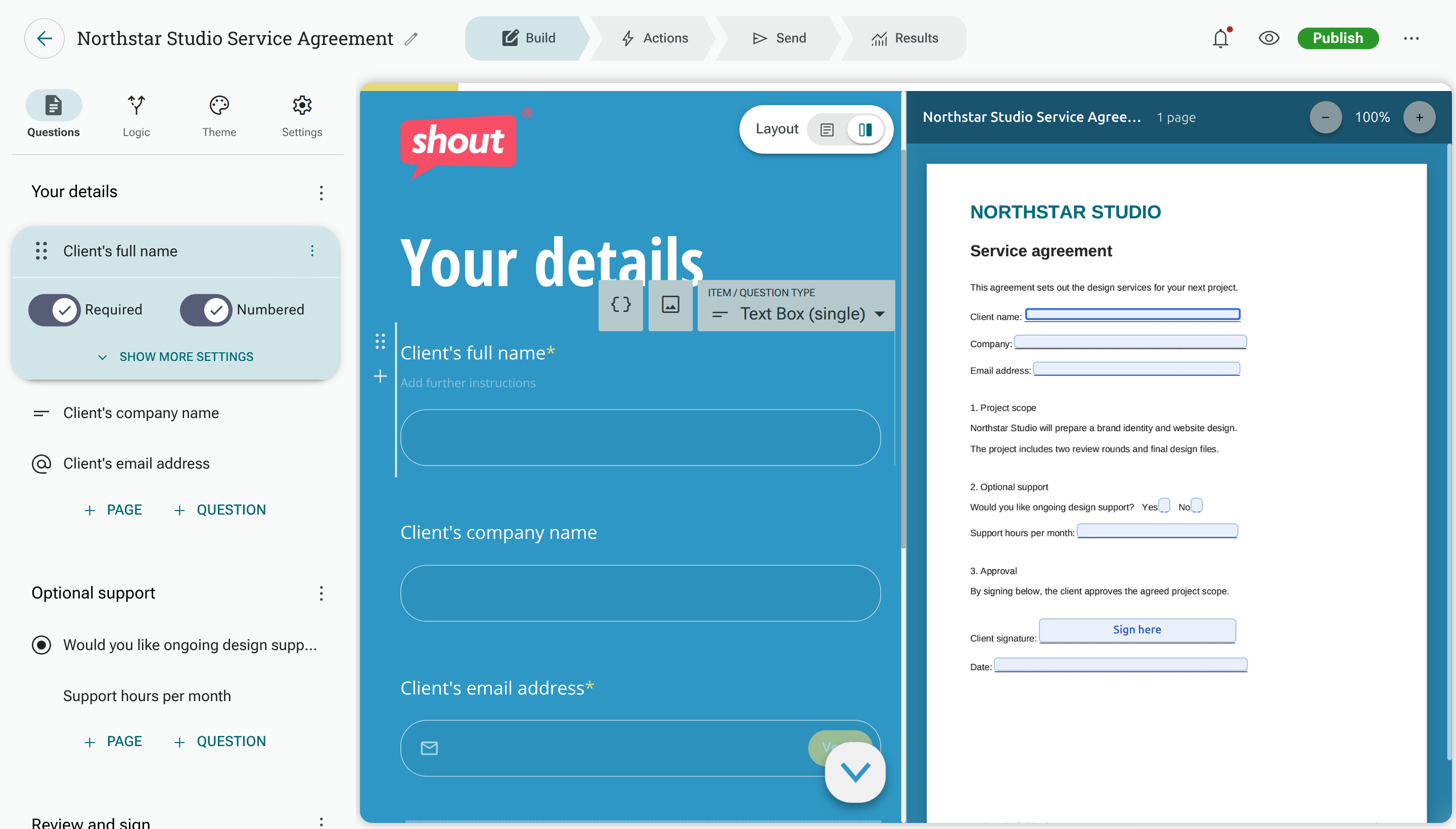
Check signers and share the form
Section titled “Check signers and share the form”Check Signing order, including the person answering the form and any other signers. Preview the form from the beginning: enter example answers, check the filled document and review the signing step.
When the form is ready, open its Send tab to share it. Use the normal form-sharing options for your intended audience. See Sharing your project.
Form answers can be viewed in Results. Signing progress and completed files are available in Documents.