
Create a calendar event
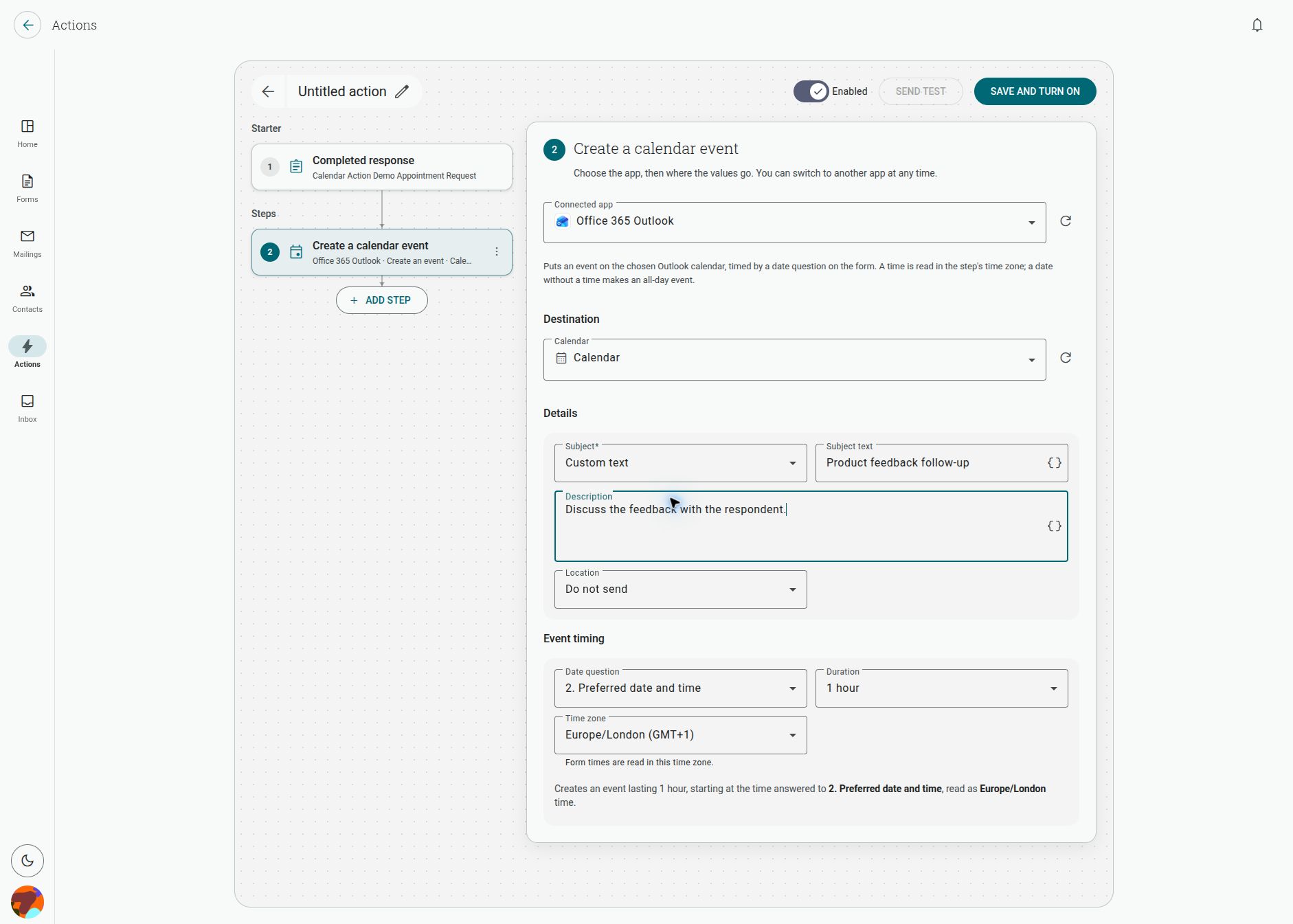
The Create a calendar event step creates an event in a connected Google Calendar or Office 365 Outlook calendar. It uses a date question from the form for the event timing.
How do I create an Outlook event from a response?
Section titled “How do I create an Outlook event from a response?”- Add a date question to the form. Include a time if respondents need to book a timed event.
- Open the form’s Actions tab and create an Action with Completed response as its starter.
- Click Add step and choose Create a calendar event.
- Select Office 365 Outlook or Google Calendar, then choose the destination calendar.
- Enter a subject and optional description. Choose a location if the form collects one.
- Choose the form’s Date question, event Duration and Time zone.
- Save the Action, test it in a test calendar, and enable it when the event details are ready.
How are date and time answers interpreted?
Section titled “How are date and time answers interpreted?”The step reads a time in the step’s selected time zone. A date answer without a time creates an all-day event. The form times are read in the time zone shown in the step, so choose it to match the calendar and the people booking the event.
The step shows a summary of the resulting event, including its duration, date question and time zone. Review this summary before saving.
Can I add a location or response details?
Section titled “Can I add a location or response details?”Yes. Map Location to an appropriate form answer or leave it as Do not send. Use the description field’s variable picker to include response or contact details in the event body.
Can I use Google Calendar instead?
Section titled “Can I use Google Calendar instead?”Yes. Select Google Calendar in the connected-app picker and choose one of the calendars offered by that connection. The date-question, duration and time-zone behaviour is the same step pattern; the available calendars depend on the connected account.