
Import contacts from an app
Use the app importer to bring contacts into Shout from a connected source. It reads the source, lets you map its fields to Shout contact fields, previews the result, and runs the import in the background.
How do I start an app import?
Section titled “How do I start an app import?”-
Go to Contacts.
-
Click Add contacts.
-
Choose Import from an app.
-
Choose a connected app, or connect the app your contacts are in.
-
If the app offers more than one source, choose what should be read from it. This might be a table, worksheet, audience, list, form, sequence, tag, or all contacts.
-
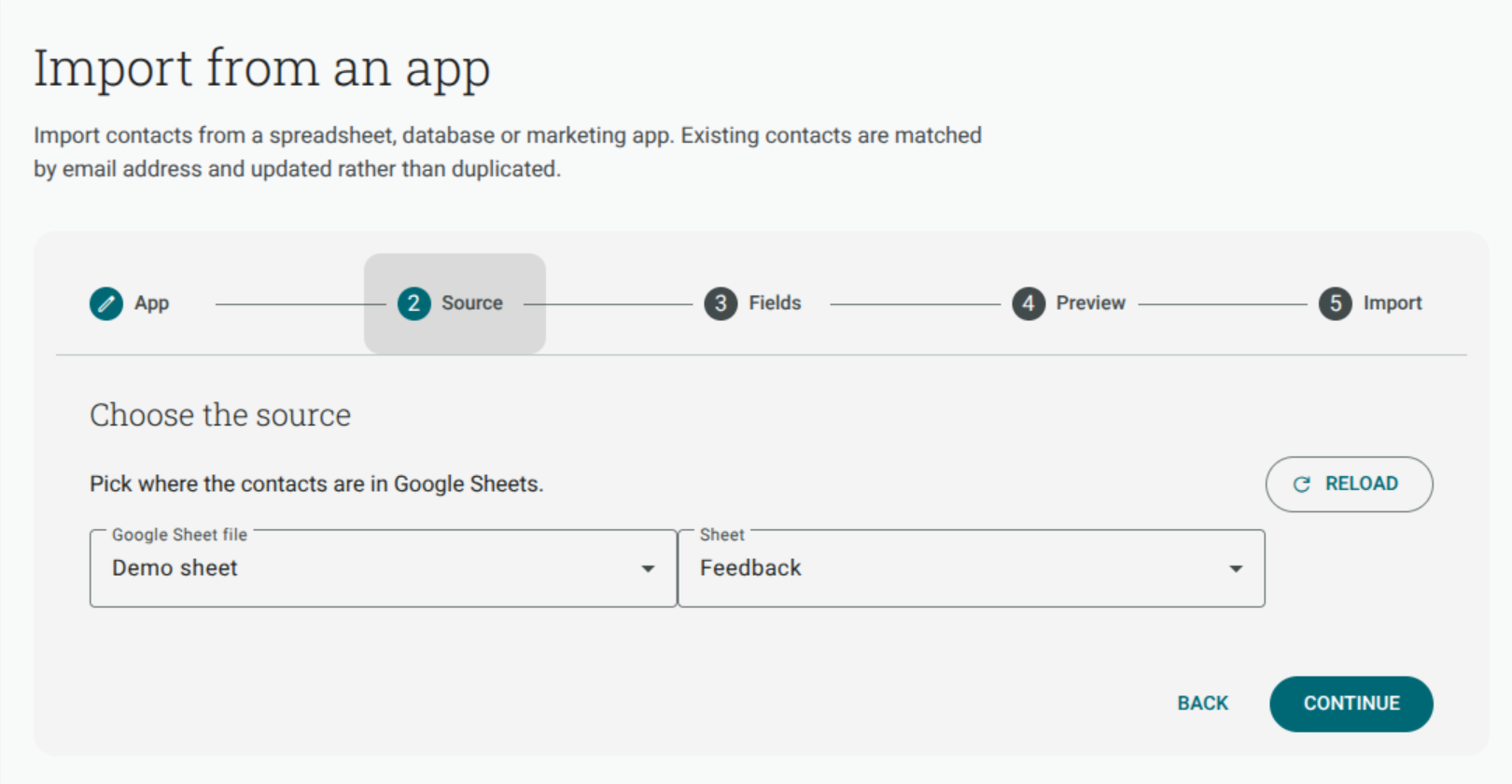
Select the file, site, table, list or other source.
-
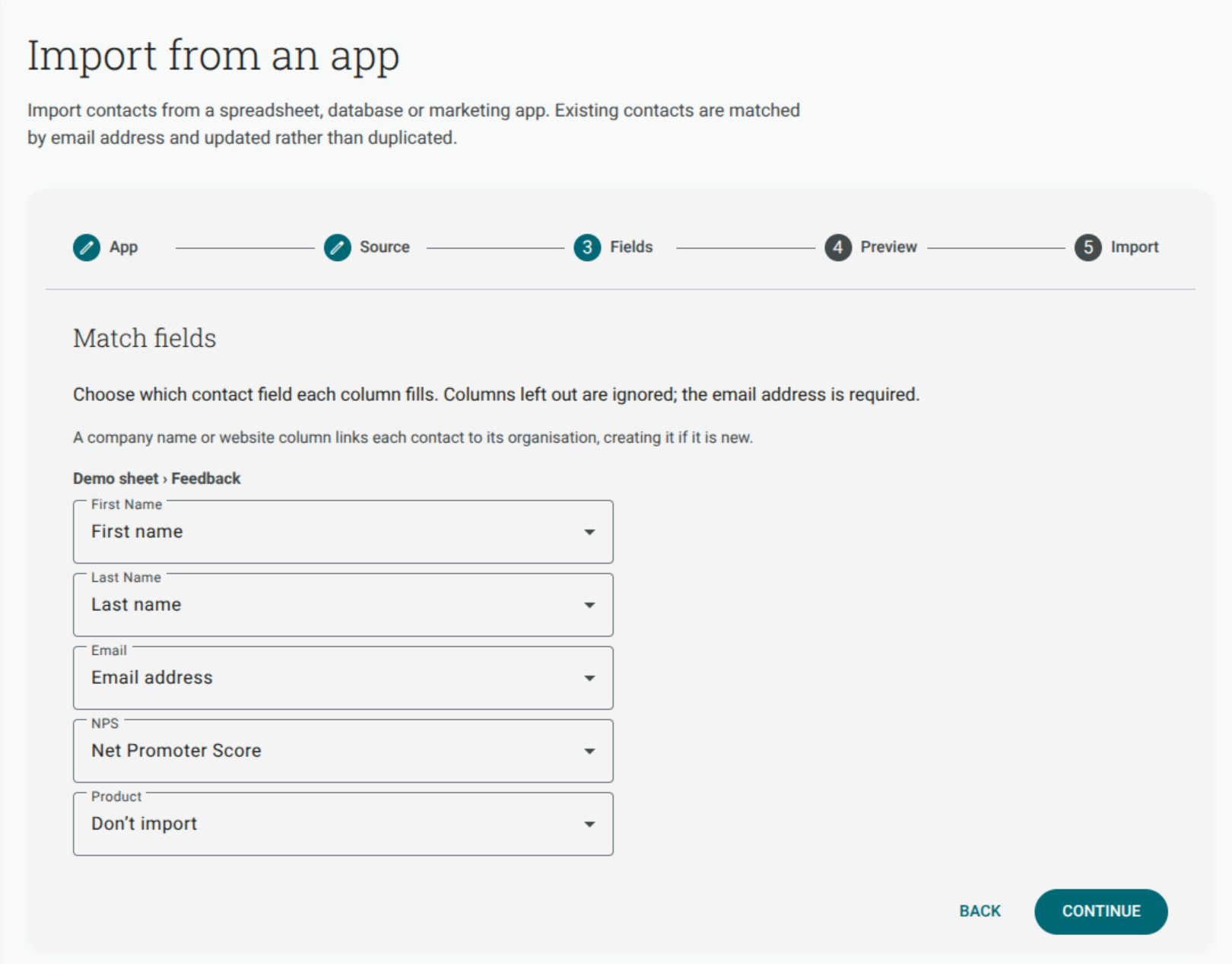
On Fields, map the source columns to Shout contact fields. See Map columns when importing contacts.
-
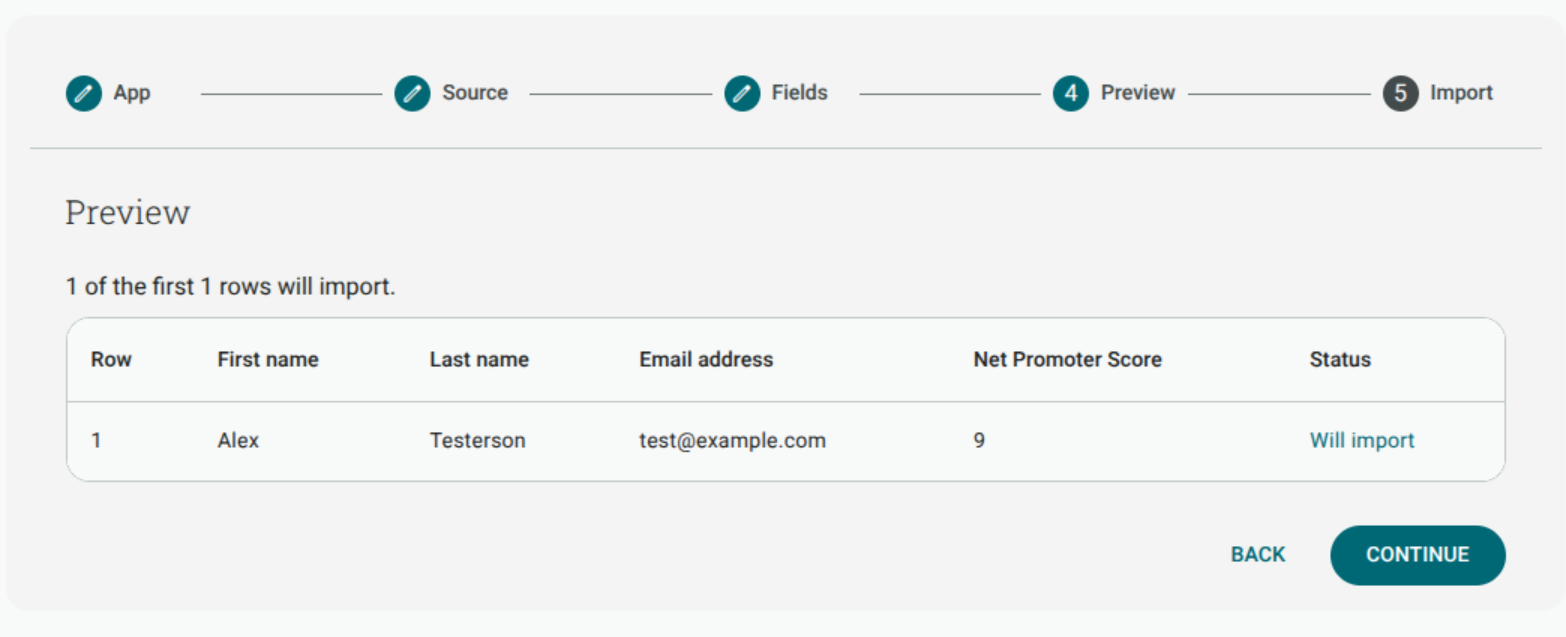
Review Preview. Fix the mapping if a warning or invalid row appears.
-
On Import, choose a Shout list and what to do with existing email addresses.
-
Click Import contacts.
The importer currently supports the providers listed in Import sources and limits, when the relevant connection is available to your account. The catalogue and the source choices in the app are authoritative and can change.
The examples use fictional data. For the complete mapping rules, including warnings and full-name conflicts, see Map columns when importing contacts.
Which apps can I import from?
Section titled “Which apps can I import from?”The importer supports more than the apps shown as featured shortcuts. At the time of this release, the import-capable providers were:
- Tables, worksheets, lists and databases: Databricks, Dynamics 365 Business Central, Dynamics 365 Business Central (on-premises), Dynamics 365 Customer Insights, Dynamics NAV, Excel Online (Business), Fin & Ops Apps (Dynamics 365), Google Sheets, Informix, Salesforce, SharePoint, Snowflake, SQL Server, UserVoice and Zendesk.
- Dedicated contact or subscriber sources: ActiveCampaign, ConvertKit, HubSpot, Mailchimp, Salesforce and Zendesk.
Salesforce and Zendesk expose both a tabular source and a dedicated contact/user source. The exact source names and any additional providers are controlled by the catalogue shown in your account. An app that can receive an Action is not automatically an import source; it must expose records that Shout can read.
Is an import automatic or one-off?
Section titled “Is an import automatic or one-off?”The import you start is a one-off background run. Its source, settings and mapping are saved under Synced lists and imports, so you can use the saved import again without rebuilding it.
There is no scheduled re-import. An unlinked saved import shows Import again. For a supported linked list, use Sync now instead: it brings in new and changed subscribers and also reconciles unsubscribe status.
Which imports can be synchronised?
Section titled “Which imports can be synchronised?”An import from an ActiveCampaign list, Mailchimp audience, or ConvertKit subscriber source can stay linked to the Shout list selected on the final step. These are the providers that support the two-way unsubscribe sync in this release. See Sync lists with an app for the dedicated setup and behaviour guide.
After the link exists, Contacts → Sync lists runs the linked lists visible to you. A sync:
- imports new and changed subscribers into Shout;
- reads provider unsubscribes and bounces and applies them to the contacts in the linked Shout list;
- sends Shout unsubscribe changes back to the provider; and
- keeps a contact unsubscribed rather than resubscribing them during the import.
Sync does not add or subscribe new contacts in the provider, remove contacts or list memberships, or run on a schedule. ActiveCampaign and Mailchimp apply the provider-side unsubscribe to that list; ConvertKit applies the provider-side unsubscribe account-wide. If you stop syncing a list, future imports and unsubscribe updates stop, but the contacts and memberships already brought into Shout remain. Import the list again to link it again.
What happens when a contact already exists?
Section titled “What happens when a contact already exists?”On the Import step, choose one of these options:
- Update it — updates the mapped fields, adds the contact to the chosen Shout list, and does not clear values that were not mapped.
- Leave it unchanged — adds only new contacts and leaves an existing contact and its list membership untouched.
Contacts are matched by email address, so an existing address is not duplicated. A repeated address inside the source is also processed only once; the first row wins.
How many contacts can I import?
Section titled “How many contacts can I import?”The default limit is 50,000 rows per tenant per day. Rows beyond the limit are reported as not imported. Your account may have a different configured limit. A sync uses the same contact-import limit when it brings new subscribers into Shout; unsubscribe reconciliation still runs when an import reaches that limit.
Can I run the same import again?
Section titled “Can I run the same import again?”Yes. Open Contacts → Synced lists and imports. An import that is not linked has an Import again button. A linked ActiveCampaign, Mailchimp or ConvertKit source has Sync now, which re-runs the saved import as part of the list sync and reconciles unsubscribe status.
If the source or its columns changed, choose Edit, reload the source, and review the mapping before running it again. If a linked source is stopped, importing that list again creates the link again.
Does Shout verify email addresses during import?
Section titled “Does Shout verify email addresses during import?”Email is required. Shout checks that each mapped value has a usable email format, but it does not verify that the mailbox exists or that the person has opted into your communications. Rows with a missing or invalid email are reported as not imported. Blank source rows are skipped before they are counted.
Do I need consent to import these contacts?
Section titled “Do I need consent to import these contacts?”Yes. Import only contacts who have agreed to hear from you. The final Import step reminds you of this before you start the background run.