
Connect an app to Shout
Connect an app before you build an Action that sends data to it. Shout opens the app’s sign-in in a new window, then lists the connection in Connected apps when setup is complete.
Where do I find the apps I can connect?
Section titled “Where do I find the apps I can connect?”- Go to Actions in the main navigation.
- Open Available apps.
- Find an app, or search for it in Search apps.
- Choose the app and click Connect account.
You can also start from the Connect your apps card on the Home dashboard, or connect an app while choosing an app for a step in the Action editor.
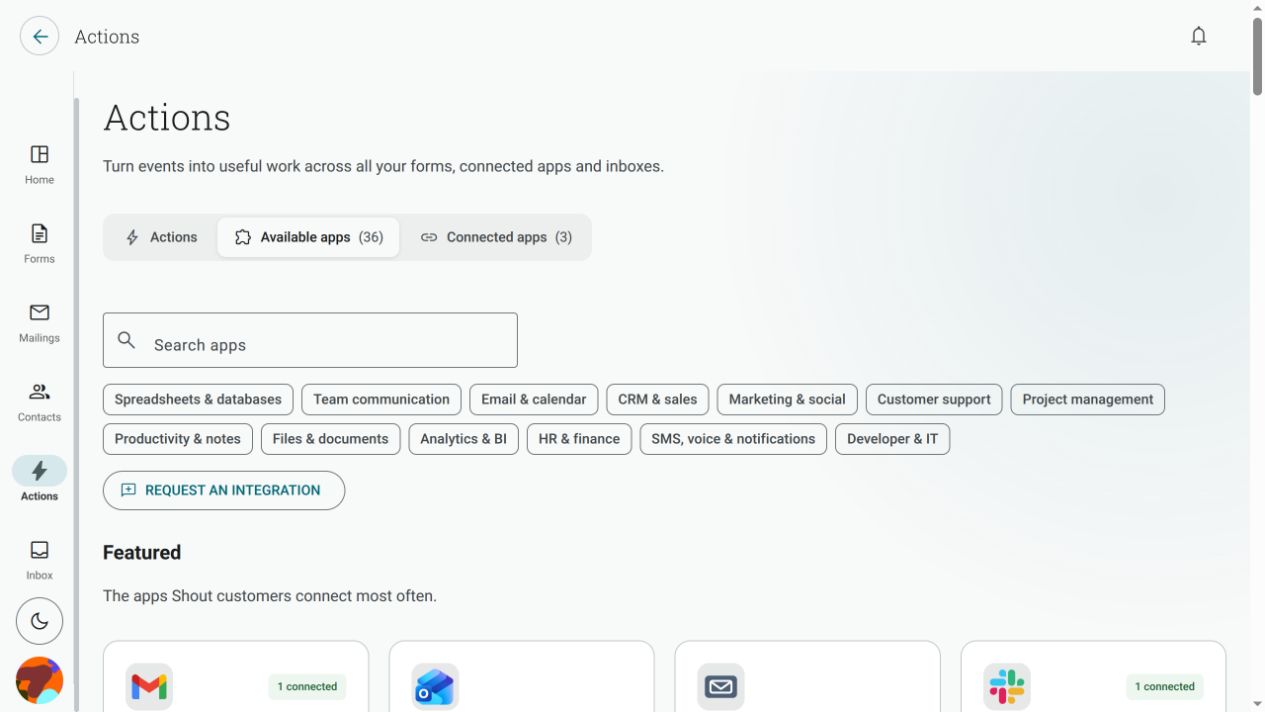
The catalogue changes as apps and steps are added. Use Available apps as the current source of truth rather than relying on a saved list.
How do I connect an app?
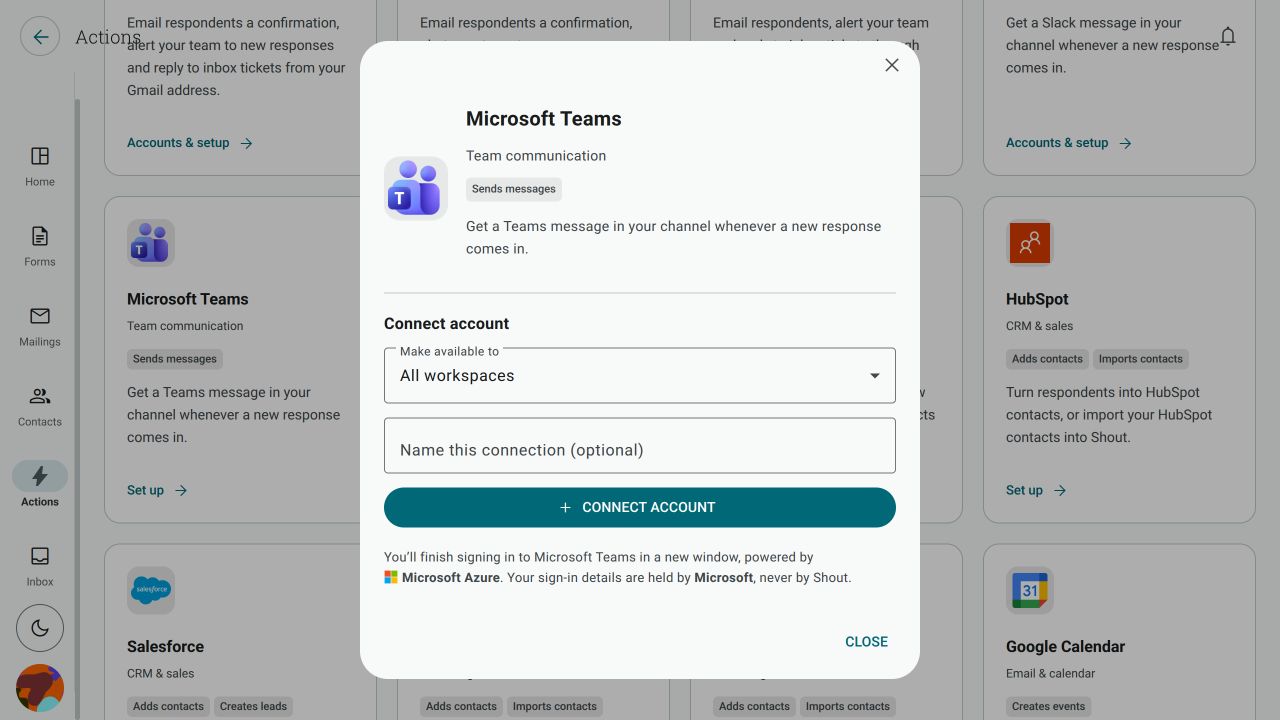
Section titled “How do I connect an app?”- Open the app from Available apps.
- In the connection window, choose Make available to.
- Optionally enter a value in Name this connection (optional). This helps you recognise the account later; it does not change the account at the app’s end.
- Click Connect account.
- Complete the sign-in and consent in the new window provided by the app.
When you return to Shout, check Connected apps to confirm that the account is listed as Connected.
Why does sign-in open in a new window?
Section titled “Why does sign-in open in a new window?”OAuth-based connections handle sign-in and consent in a new window outside Shout. Shout uses the result to create the connection, but your sign-in details are entered in the app’s window. Native Shout integrations can use a different connection flow.
If an app’s connection window says sign-in is powered by Microsoft Azure, follow that app-specific disclosure and review the permissions shown before approving it. Other apps use Shout’s native integration path, so the sign-in flow and disclosures can differ.
Can I connect two accounts of the same app?
Section titled “Can I connect two accounts of the same app?”Yes. Add the second account from the app’s Connect account flow. Each connection appears as a separate entry in Connected apps, where you can identify it by its optional name, account and sharing scope.
What does Connected apps show?
Section titled “What does Connected apps show?”Open Actions → Connected apps to see the accounts you can access. The page shows the app, connection scope and status, and provides actions such as Sharing, Check status and Disconnect where they apply.
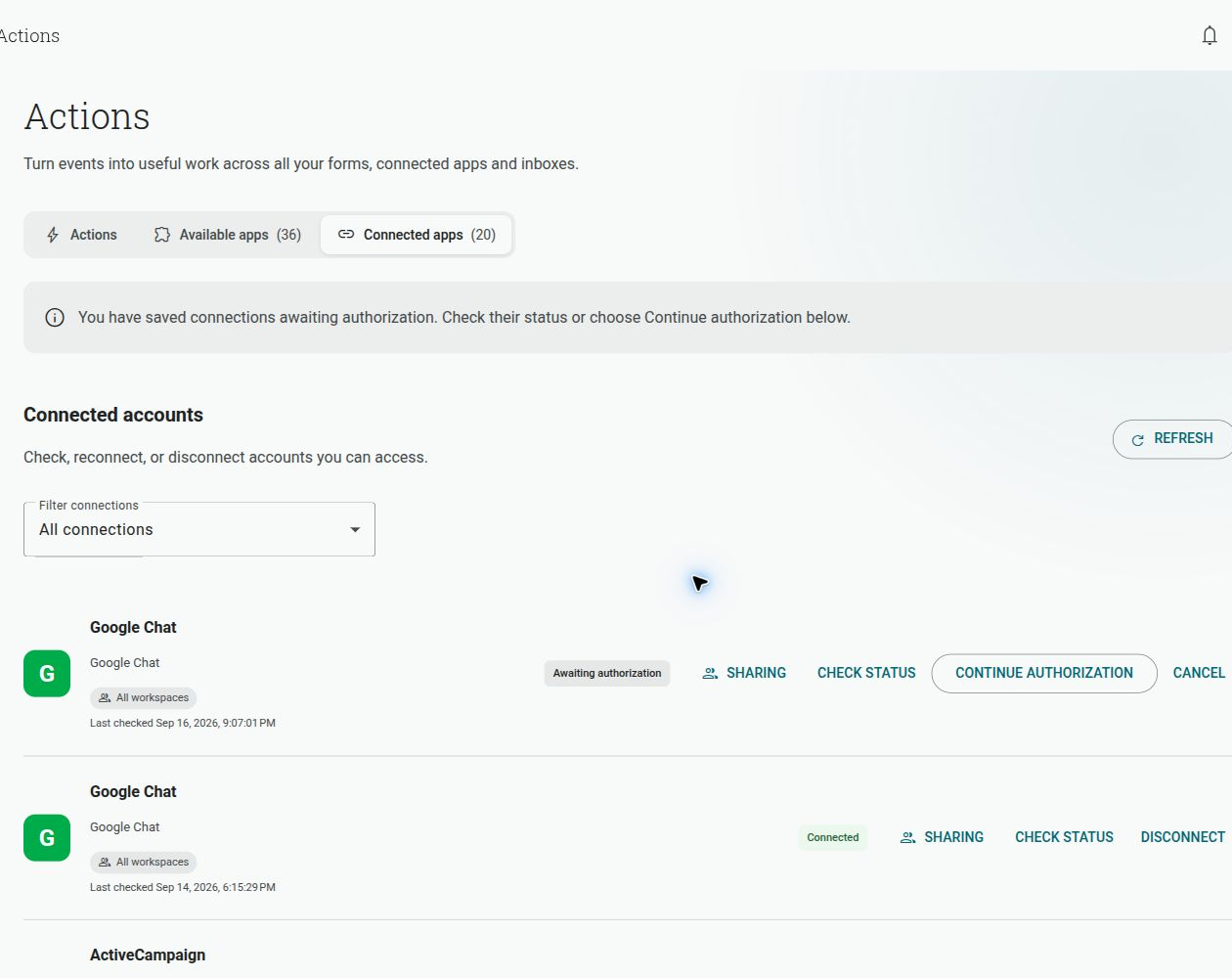
For sharing choices, see who can use a connection. For a connection that has stopped working, see reconnect or remove a connection.
The app is listed but has no actions. Why?
Section titled “The app is listed but has no actions. Why?”Some apps can be connected before Shout has added a step for them. If the app shows No actions yet, you can manage the connection, but it cannot be selected for an Action step yet.
If the app is not listed at all, use Request an integration on Available apps to tell Shout which app you need.